
1. Launching the Application
After installation, open the application and make sure it is ready to use.
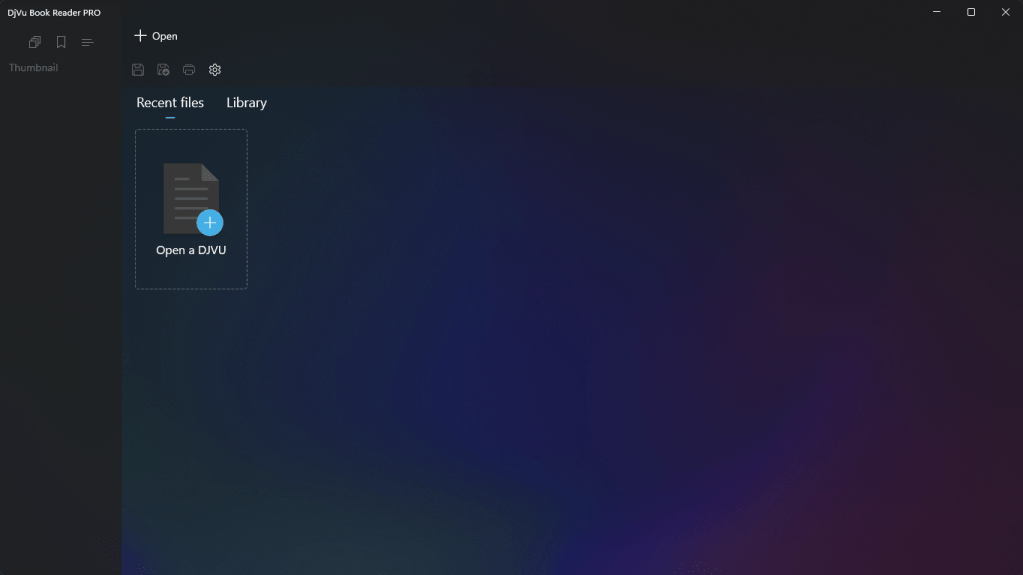
2. Adding a Document
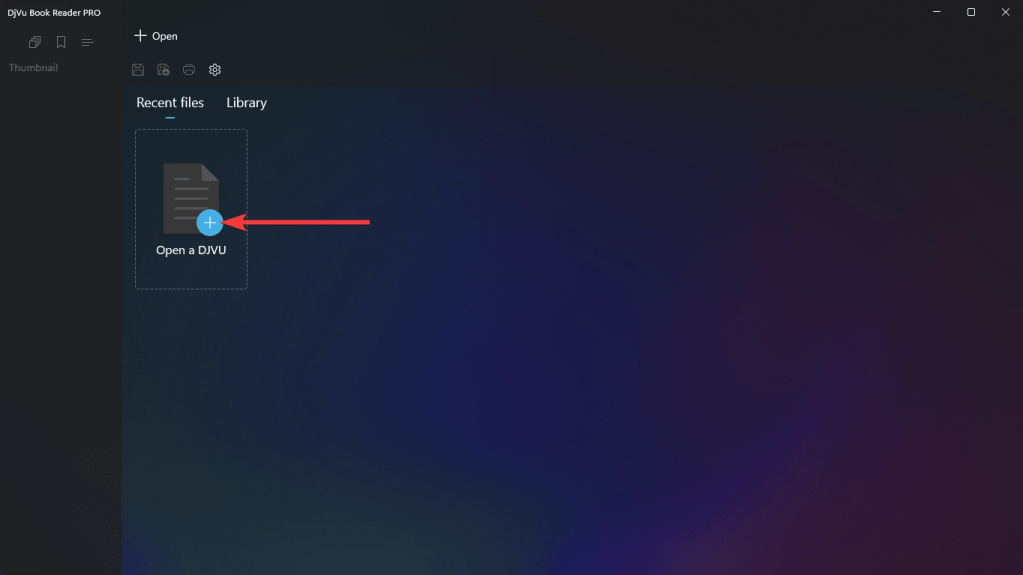
Click Open a DJVU to open the file explorer and select a document.
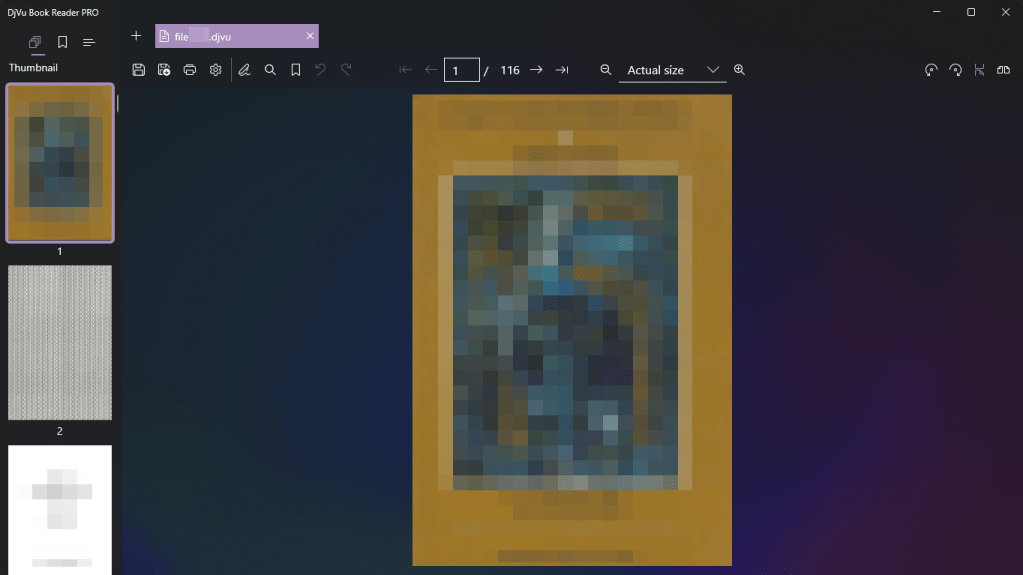
3. Document Page
The selected document is displayed in the main window.
4. Viewing Multiple Documents
To open multiple documents, click Open and select another document.
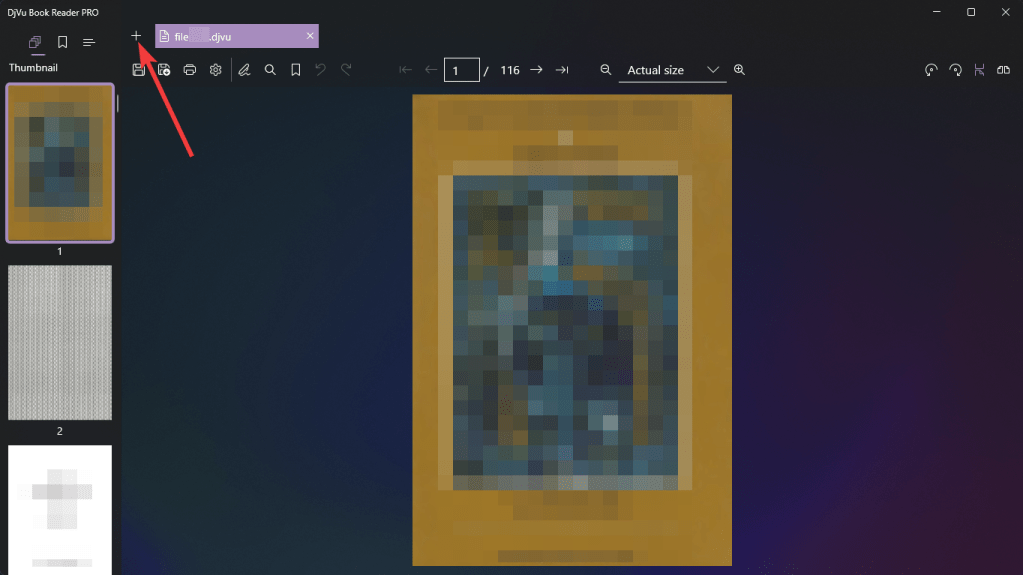
5. Navigating Between Documents
You can switch between documents using tabs.
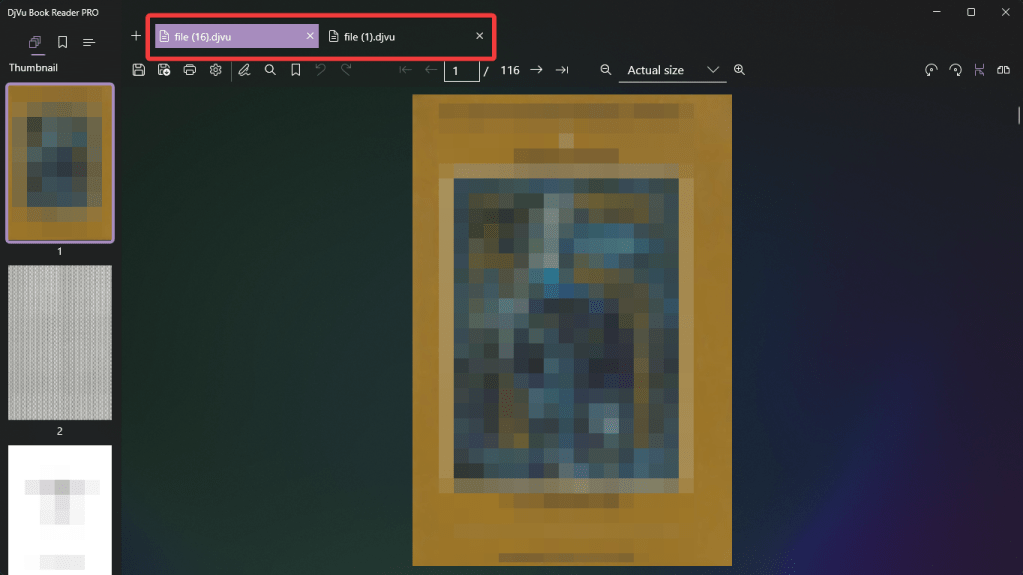
6. Page Preview
The Thumbnail tab displays page thumbnails of the document.
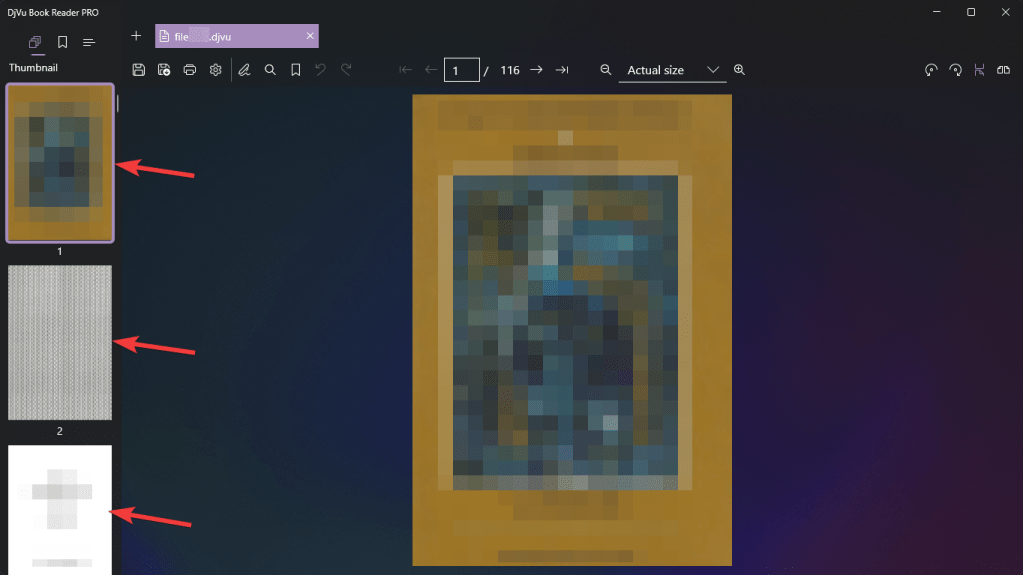
7. Navigating Through Document Pages
You can navigate between pages by selecting the corresponding thumbnail in the Thumbnail side panel or by using the navigation controls on the document toolbar.
For quick navigation to any page, use the input field that displays the current page number.
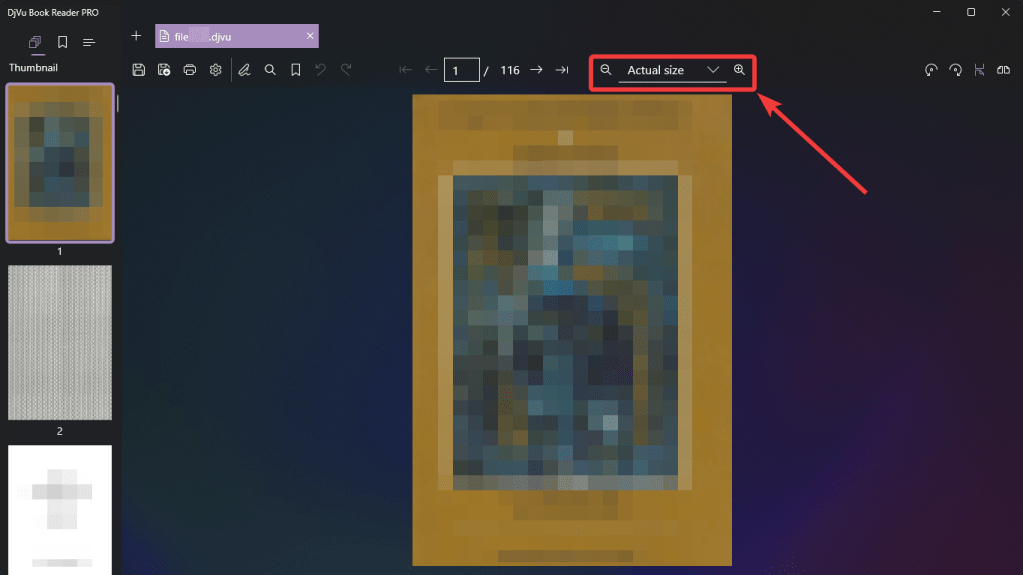
8. Zooming Pages
The document toolbar contains buttons to adjust the page zoom level.
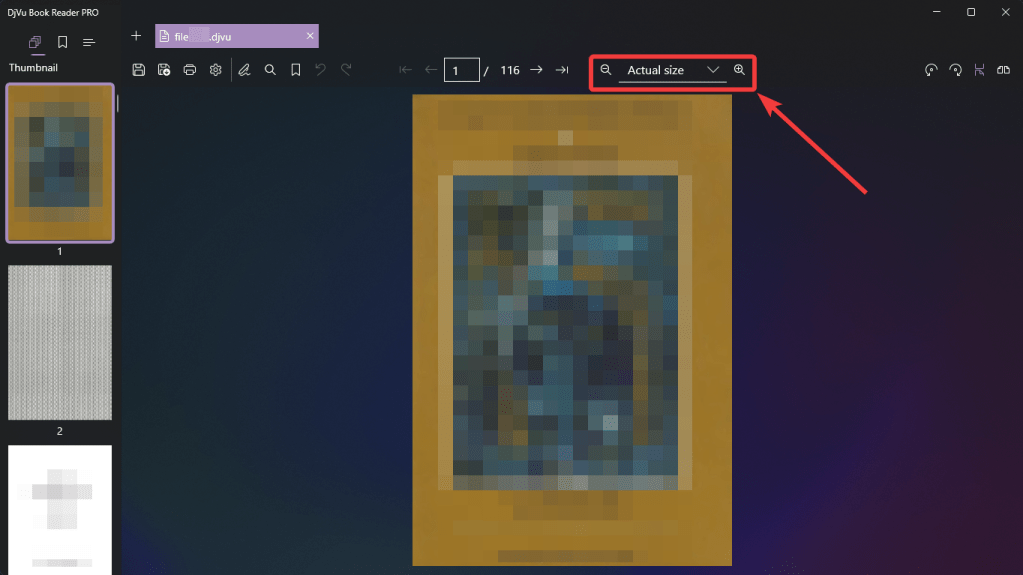
Standard zoom levels are available for convenience.
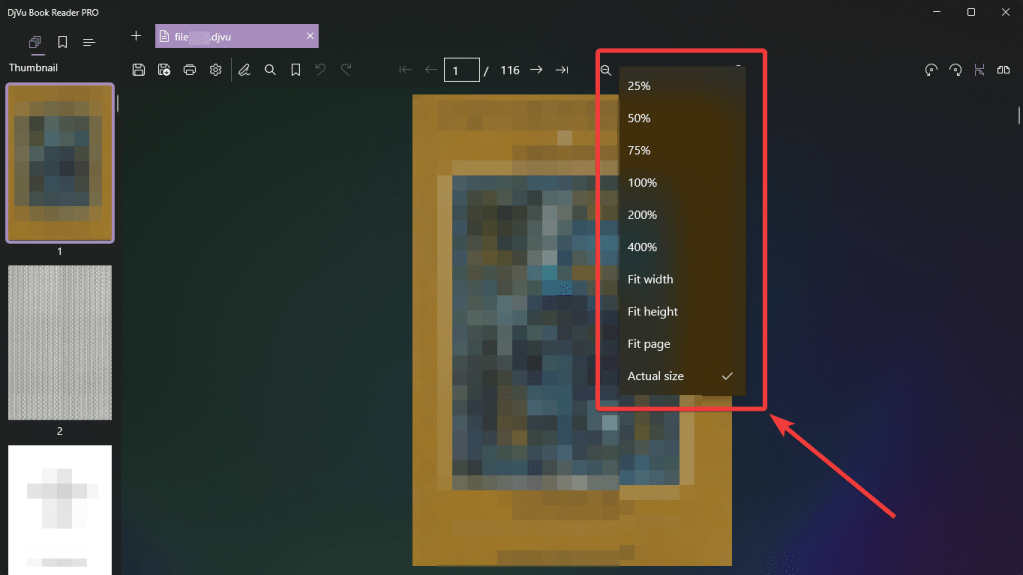
You can also change the zoom level using the mouse wheel while holding the Ctrl key.
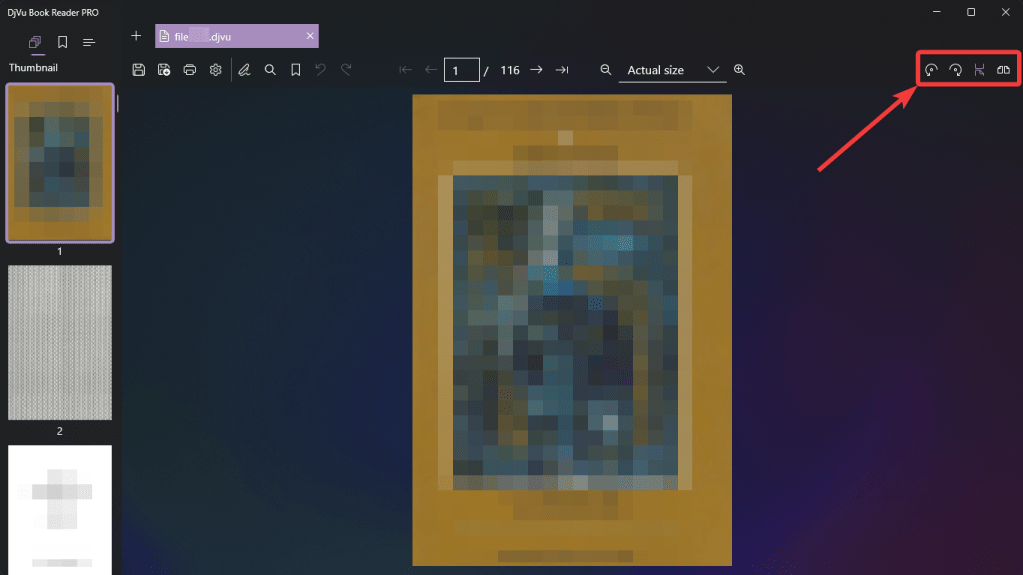
9. Page Orientation and Two-Page View
The document toolbar includes buttons for rotating pages and switching between single-page and two-page view modes.
10. Page Bookmarks
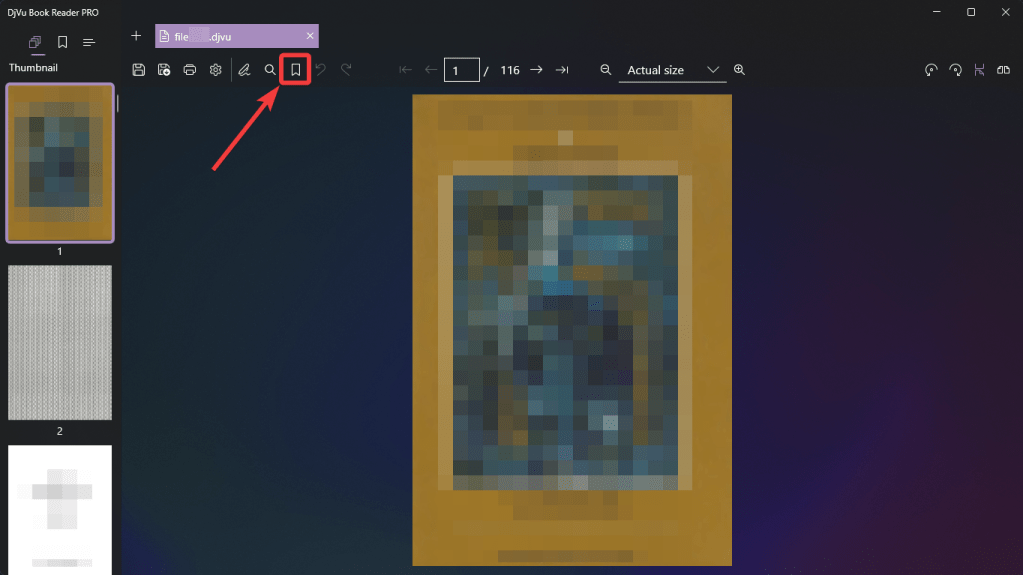
To add a bookmark, select a page and click Add bookmark.
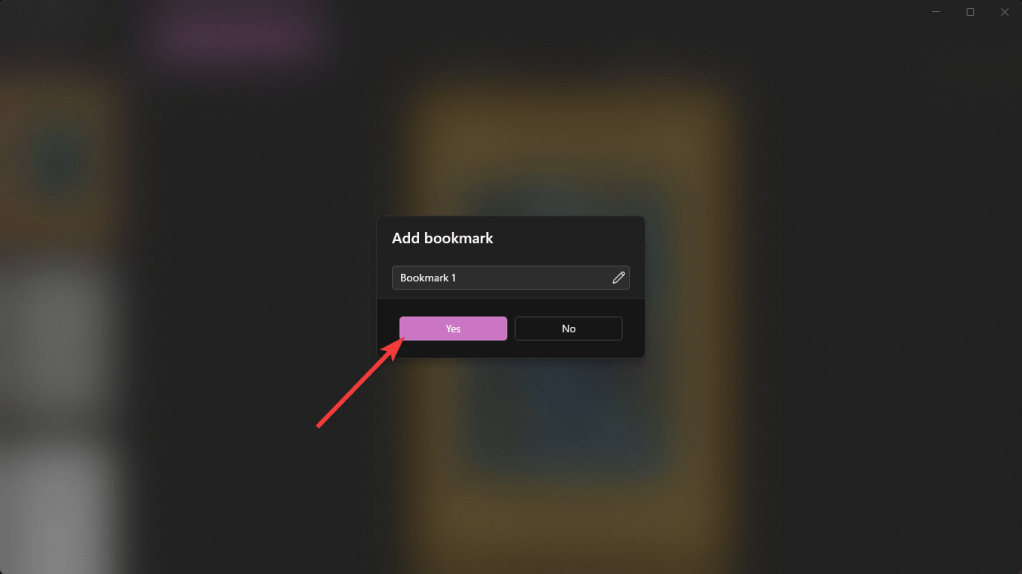
Enter the bookmark name and click Yes to confirm.
Added bookmarks are displayed in the Bookmark tab in the side menu. Clicking a bookmark navigates to the corresponding page.
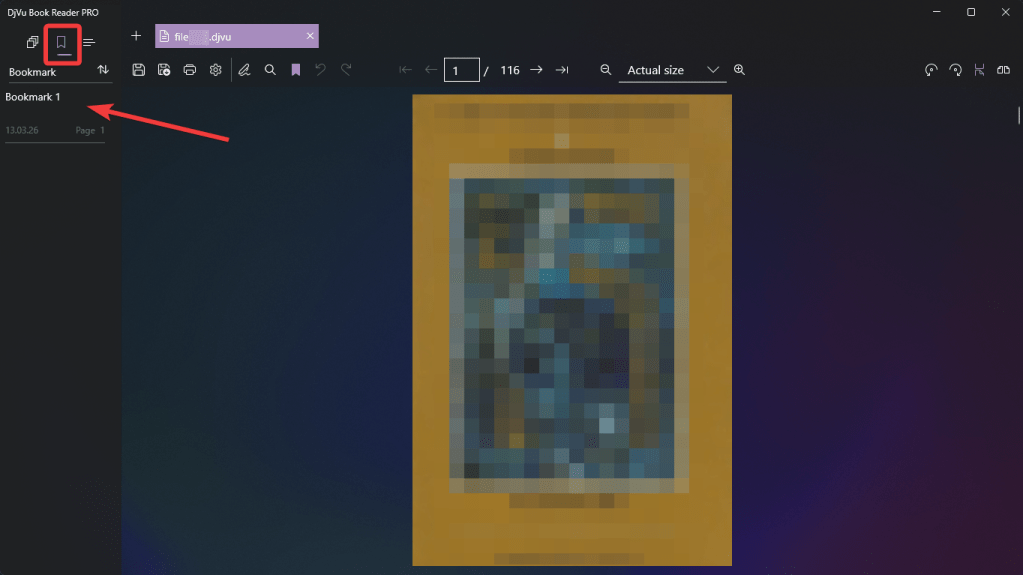
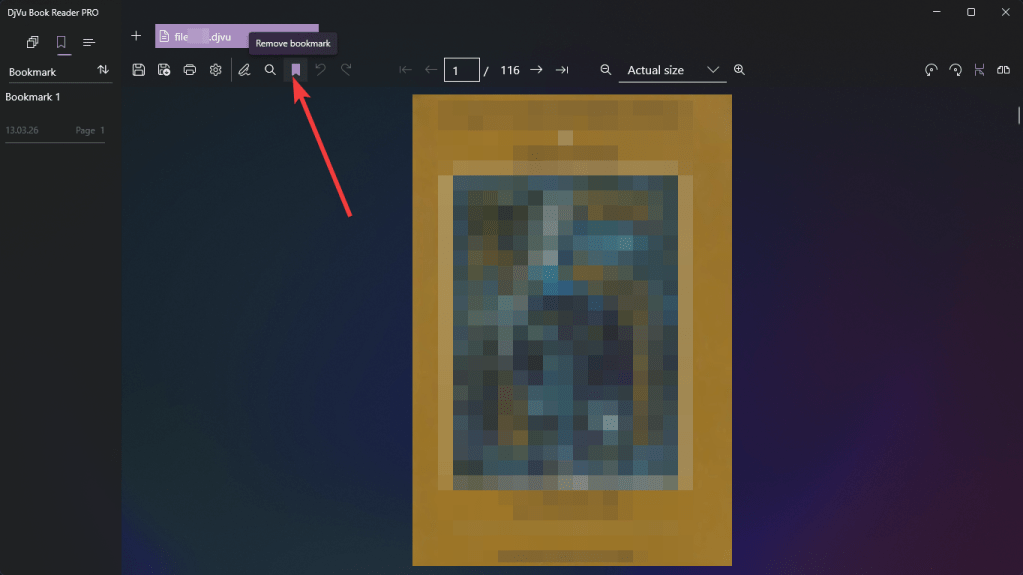
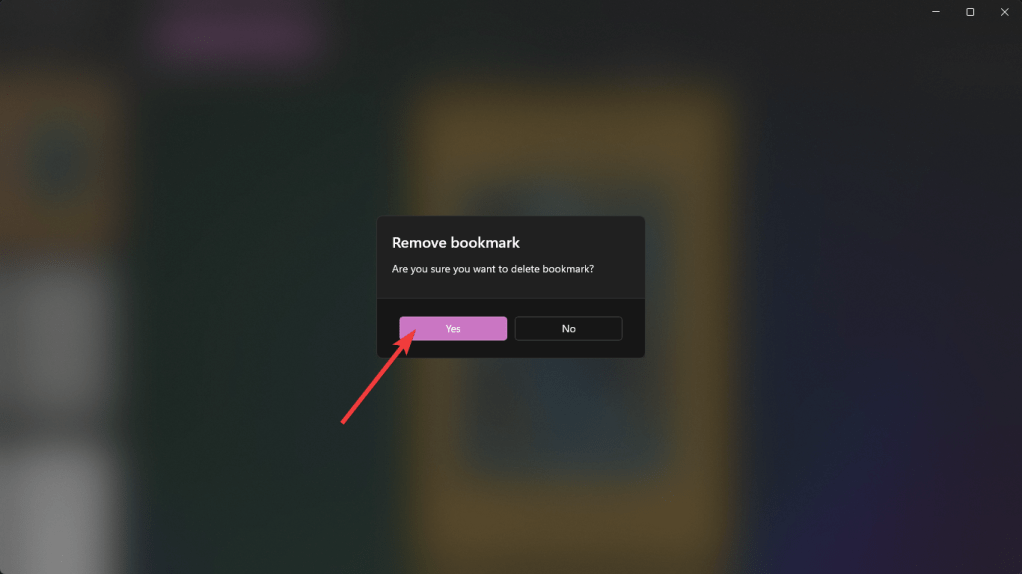
To remove a bookmark, open the page and click Remove bookmark, then confirm the deletion.
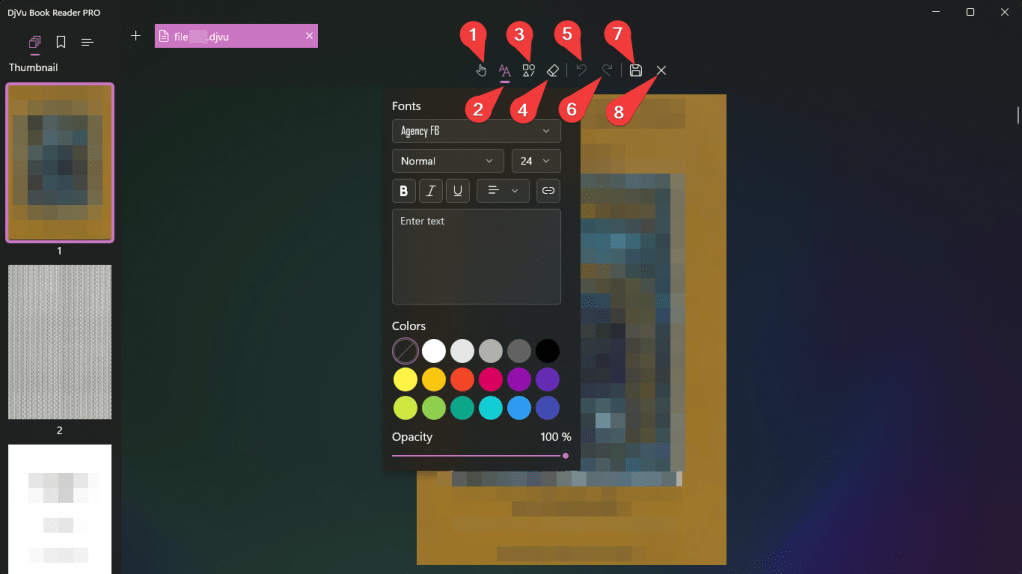
11. Editing Document Pages
Use Edit to add text, notes, or geometric annotations.
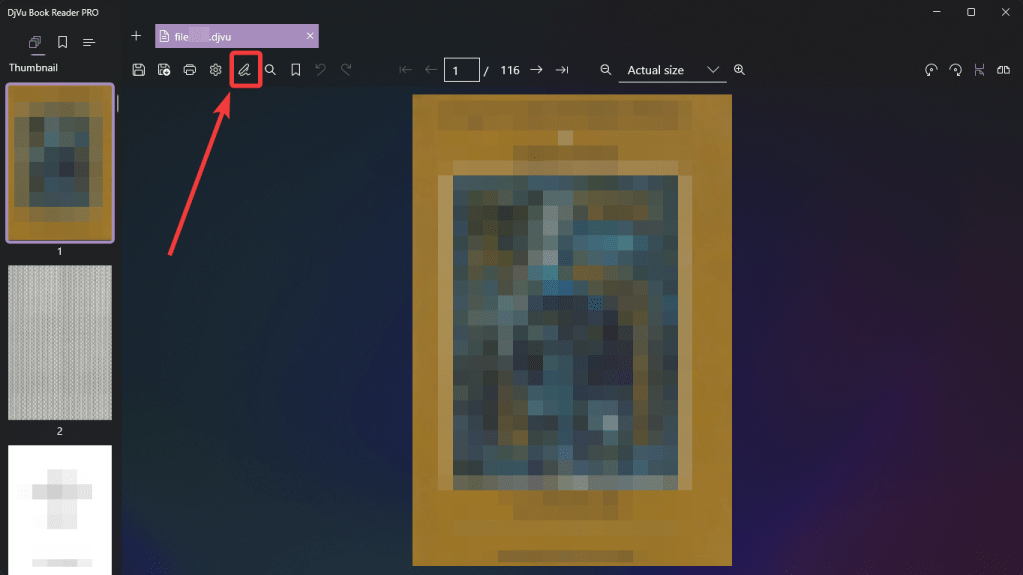
To select a tool, click:
Select a tool (1)
Add text (2)
Add shape (3)
Delete element (4)
Undo (5)
Redo (6)
Save changes (7)
Exit Edit mode (8)
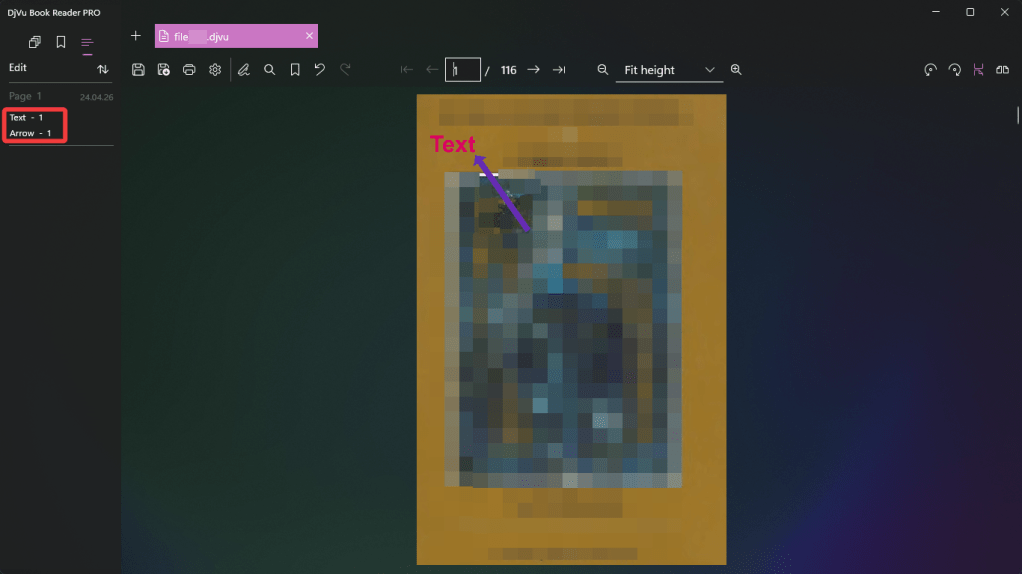
17. Annotation List
The Edit tab displays a list of annotations on the document pages.
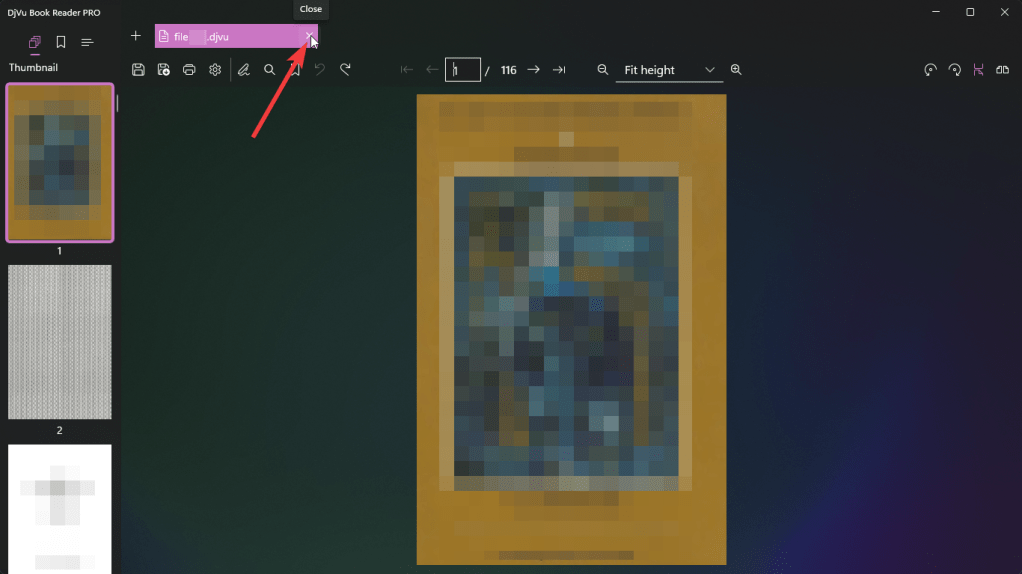
18. Returning to Main Menu
To return to the main window, close all open books using the Close button.
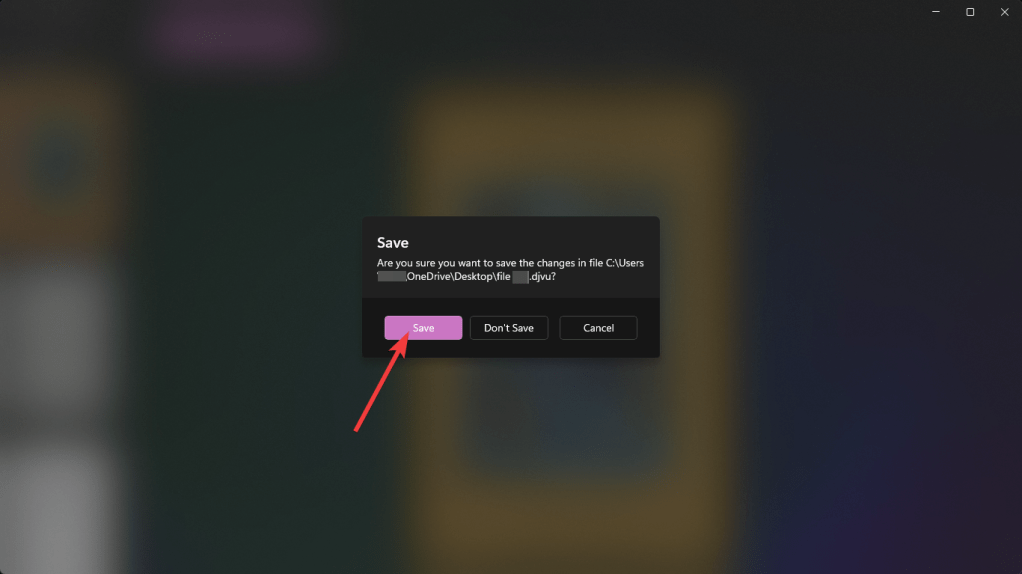
19. Saving Changes
If there are unsaved changes in a book, the application will prompt you to save them.
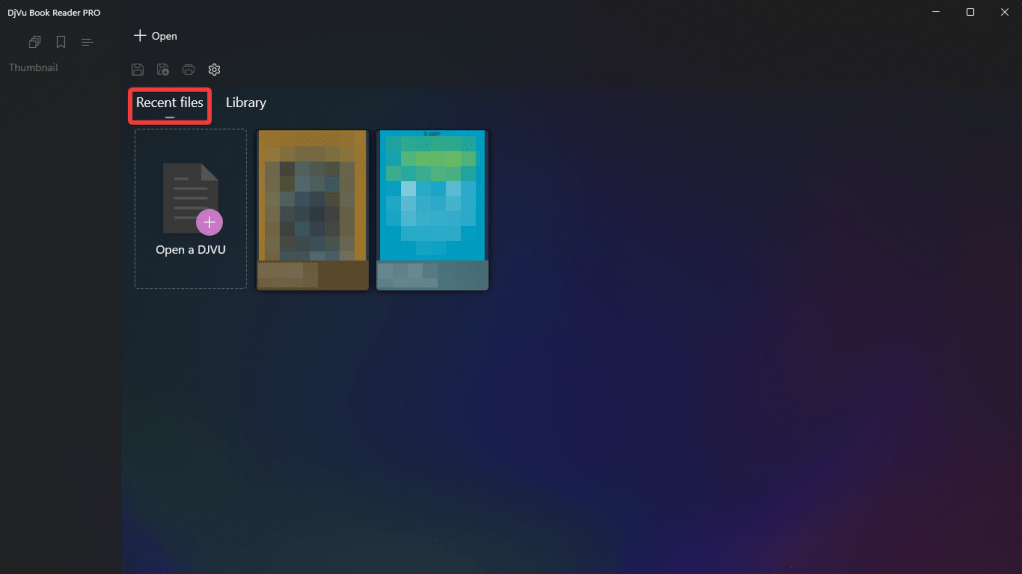
20. Recent Files Tab
Recently viewed books are displayed in the Recent files tab.
Click the icon of the desired book to switch to reading mode.
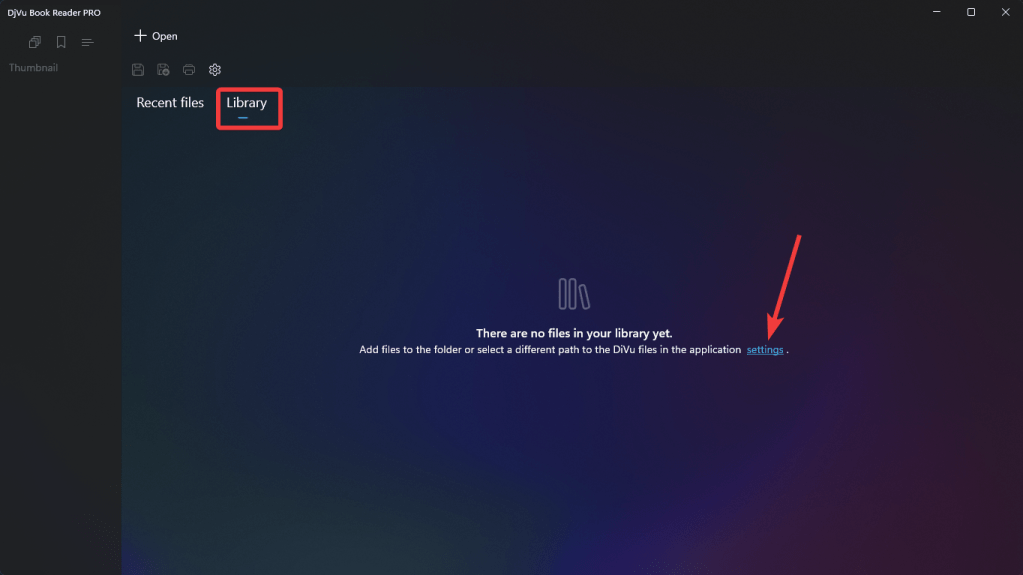
21. Library Tab
To add books to the library, go to the application settings.
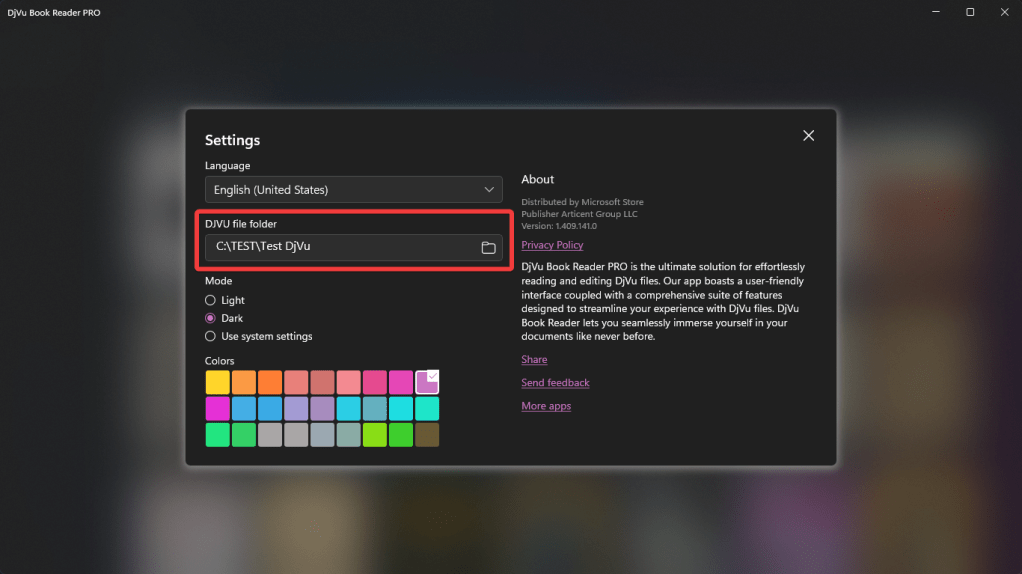
In the settings window, specify the path to the directory containing books in the DJVU file folder field.
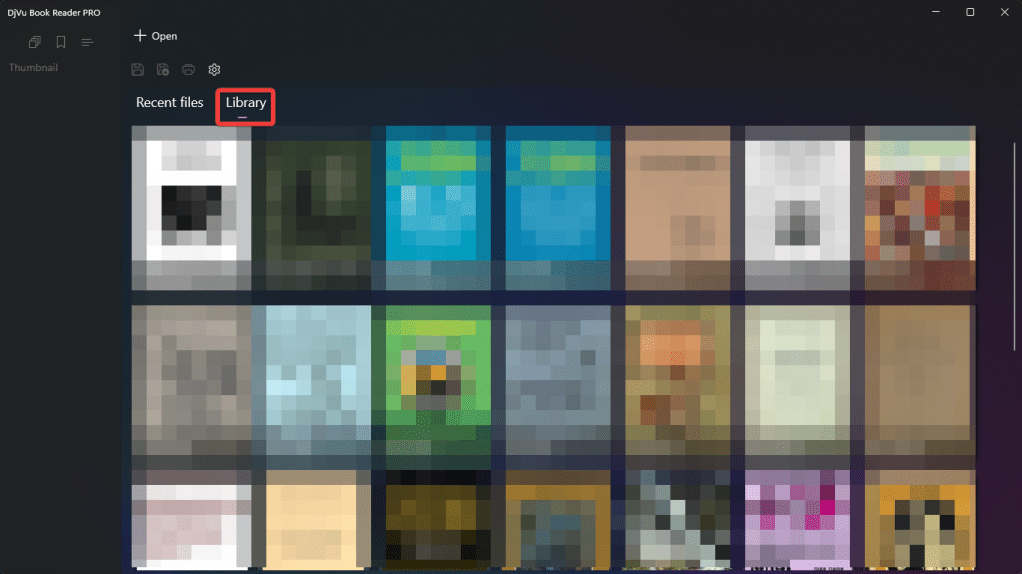
Loading books may take some time.
Books located in the selected folder will appear in the library.
22. Technical Support
If you run into an issue that you can’t resolve using this guide, feel free to contact the app support team.
When reaching out, please include:
- A clear description of the issue
- Steps to reproduce it
- Screenshots, if available
Providing detailed information will help us resolve your issue faster.

