
Power File Manager PRO – Your Ultimate File Management Companion
With its intuitive interface and powerful capabilities, Power File Manager PRO serves as a go-to solution for organizing, accessing, and manipulating files. It excels in its robust file management capabilities, offering a wide array of features that cater to your every need. Whether you need to copy, move, rename, delete, or share files, this efficient application enables you to perform these tasks effortlessly with just a few taps.
Bid farewell to cluttered digital spaces and embrace a well-organized file system. Take control of your files, ensuring a seamless experience across multiple cloud storage platforms with our Power File Manager PRO.
Check out the detailed guide on how to use our app:
- Home Page – Main page of the app with buttons that correspond to buttons of the sidebar.

- Recent Files – the application page that displays the files that are in the Pictures, Music, Video, Documents, Archives, and Downloads libraries that the user has worked with.

- Favorites – the application page, which displays files in the Pictures, Music, Video, Documents, Archives, and Downloads libraries, as well as files from Cloud storage and FTP/SFTP servers that the user has identified as favorites.

- Pictures, Music, Video, Documents – application pages that display the contents of default Windows folders (Pictures, Music, Video, Documents).

- Archives – the page of the application that displays the archive files contained in the default Windows libraries.

- Downloads – the application page displays downloaded files from cloud storage and FTP/SFTP servers. Only files that were downloaded using the application and are located in folders with the name of the application (Power File Manager/Power File Manager PRO) are displayed, the name of the folder depends on the version used by the user.

- Internal Storage – app page that displays the content of all previous pages.

- Memory analysis – displays information about used/free disk space, and Largest files from Pictures, Music, Video, Documents, Archives, and Downloads libraries.

- Largest Files – app page that displays all files from Pictures, Music, Video, Documents, Archives, and Downloads libraries larger than 50 MB.


Cloud Storages
- Cloud Storage – app page on which the Cloud storages are displayed (Google Drive, One Drive, Dropbox, Box). On this page, the user can add accounts to the respective cloud storage, open each storage, and manage the files stored in each cloud storage.


In the case of Google Drive, the user needs to check two checkboxes during the login process to gain access to the cloud storage.
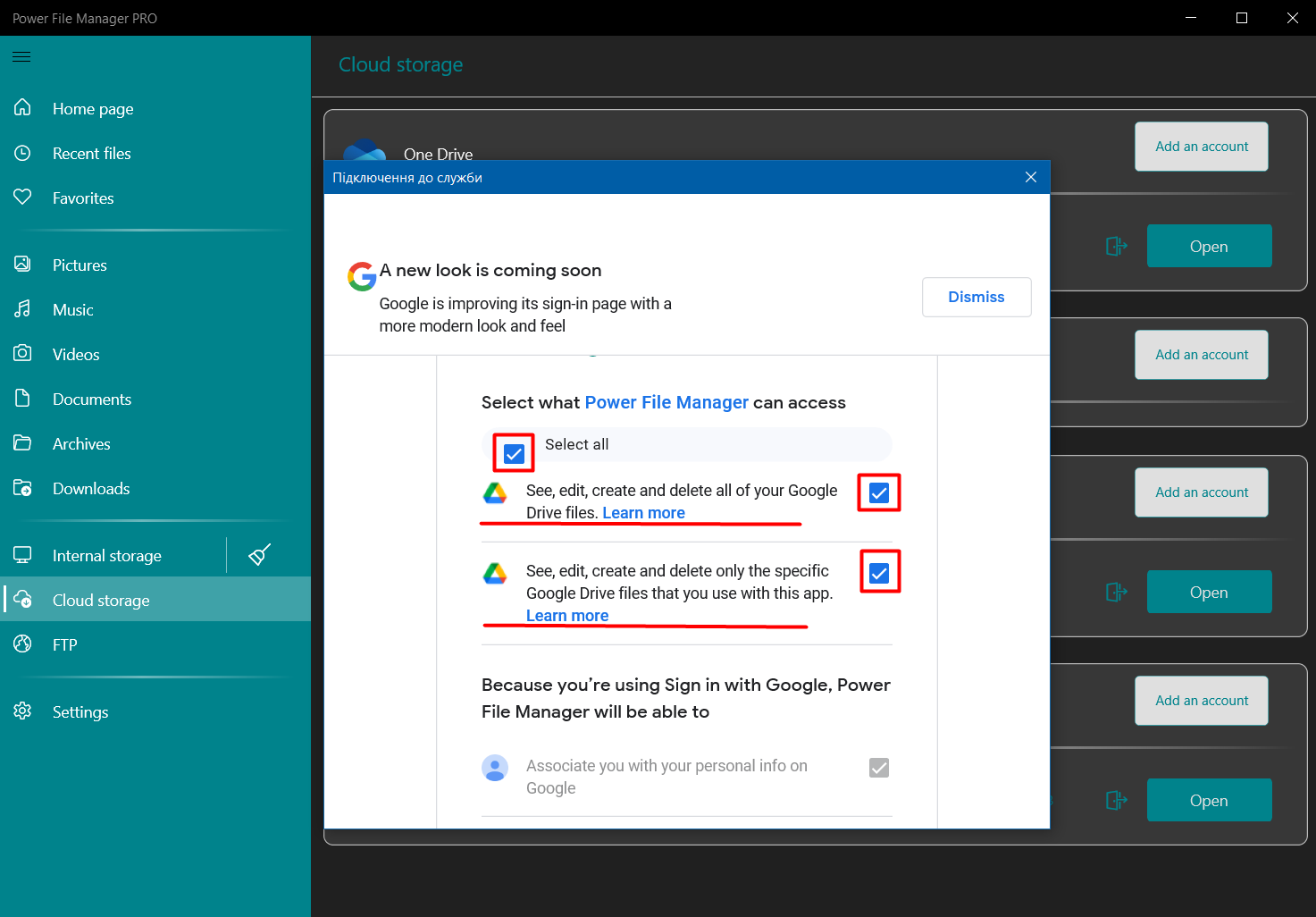
Users can upload files and folders to Cloud storage from all application pages except for Cloud storage and FTP pages.

Users can download files and folders from Cloud storages. The downloaded files are displayed on the Downloads app page.

FTP
FTP – app page, which displays all added FTP/SFTP servers.

- To add an FTP/SFTP server, the user needs to press the ‘+’ button enter all the necessary server data that needs to be connected (IP address, Port, Username, and Password), and click the Save button.


- For FTP server

- For SFTP server

- Users can upload files and folders to FTP/SFTP from all application pages except for Cloud storage and FTP pages.

- Users can download files and folders from FTP/SFTP servers. The downloaded files are displayed on the Downloads app page.

 Articent Group — Software Apps & Virtual Machine Solutions