

OpenClaw on Ubuntu 24.04 LTS provides a production-ready control plane to orchestrate AI agents, streamline integrations, and accelerate time-to-value—without operational complexity.

Effortless installation. Ready-to-run with easy maintenance. Explore now for a smooth experience!
Connection to OpenClaw on Ubuntu 24.04 LTS
- After purchasing and starting the VM, you should know its IP address. You can find it in the personal account of Azure. You need to select the virtual machine from the list. By clicking the item “Overview”, your IP is displayed in the “Public IP Address” line.
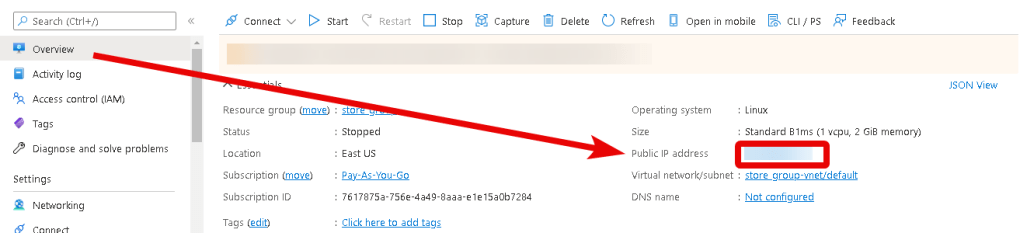
- To manage the server, you should connect to a VM.
- With OpenSSH
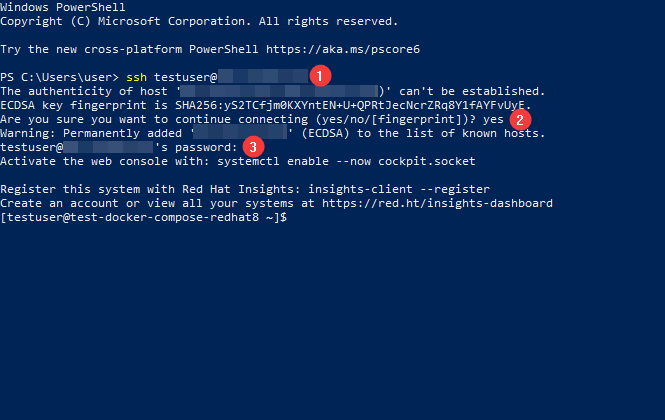
In the Windows operating system (starting with version 1809), an OpenSSH client is available, with which you can connect to Linux servers via SSH. To do this, launch a normal Windows command prompt and enter the command “ssh user@*vm_ip*” (1), where “user” is the username that was specified while creating the virtual machine and “*vm_ip*” is the VM IP address.
Then type “Yes” (2) and enter a password (3) that was specified while creating the virtual machine.
- With the PuTTY application
To do this, you need to connect via SSH to the PuTTY application. You can download it at the following link – Download
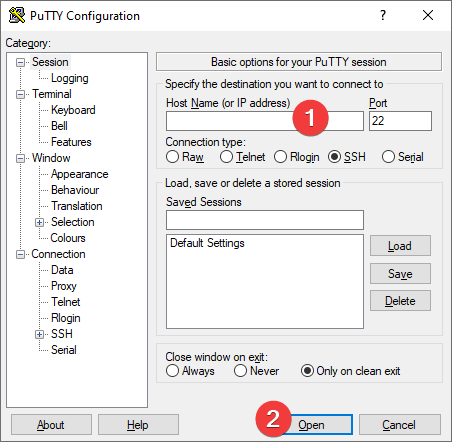
Run PuTTY, enter the VM address in the “Host” field (1), and click “Open” (2) to connect.
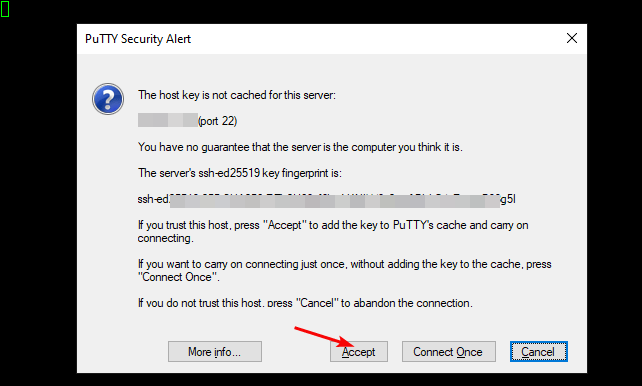
In the window that appears, click Accept.
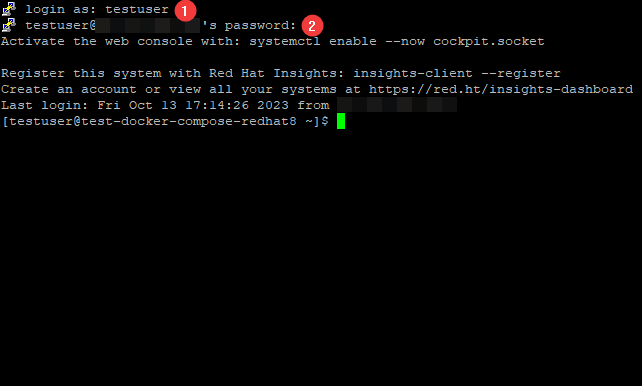
In the opened console, you will need to enter a username (1) and a password (2) that were specified while the VM was being created (you’ll not see the password in the console while entering it).
- Run the server configuration using the following command
$claw-uri.sh
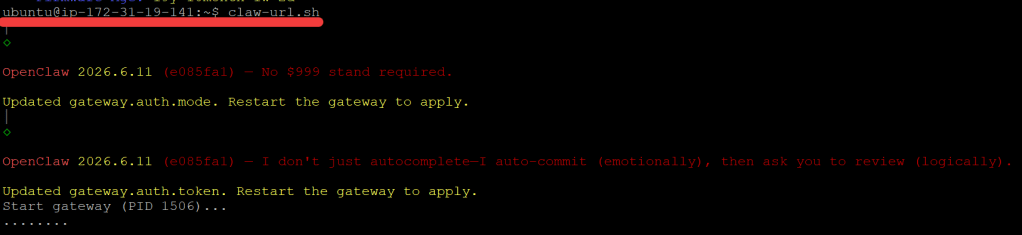
- Wait for the script to complete execution
Copy and save the URL http://localhost:18789/#token…...
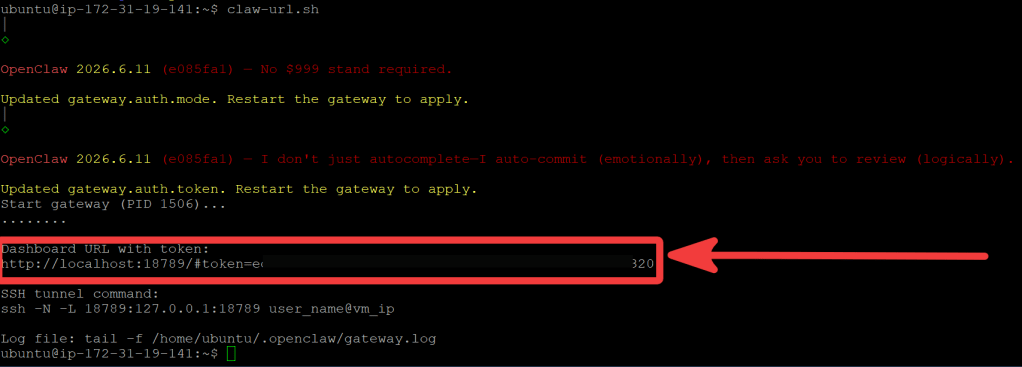
- Disconnect from the VM by typing $exit and set the SSH tunnel using the command: $ssh -N -L 18789:127.0.0.1:18789 user@*vm_ip*

- Paste the URL from step 3 into your browser. The start page will open
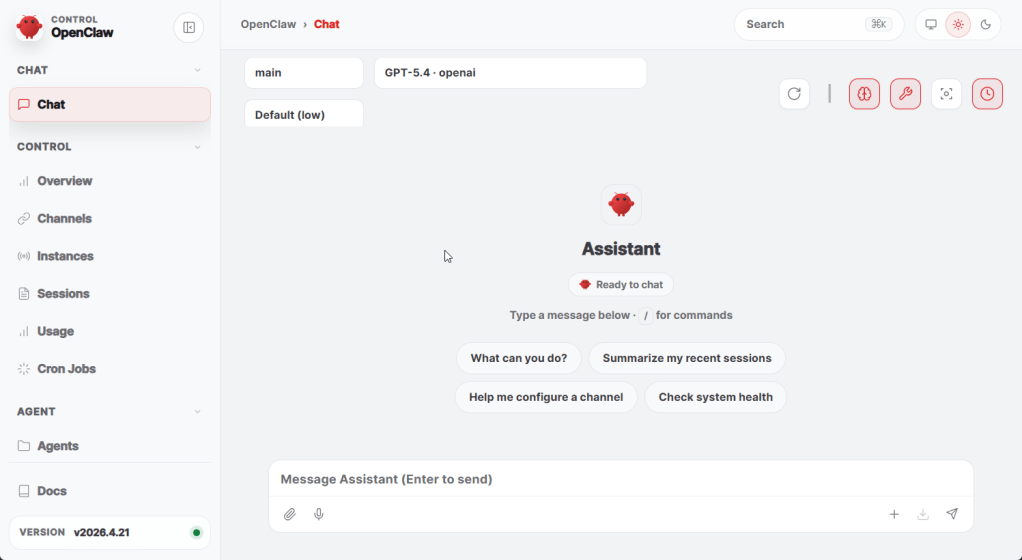
Now you can use our well-prepared VM with OpenClaw AI Agent Gateway on Ubuntu 24.04 LTS.
Example of using the OpenAI key
- Connect to the VM via SSH (point 2 from the previous section)
- Enter command $openclaw onboard –auth-choice openai-api-key and follow the instructions
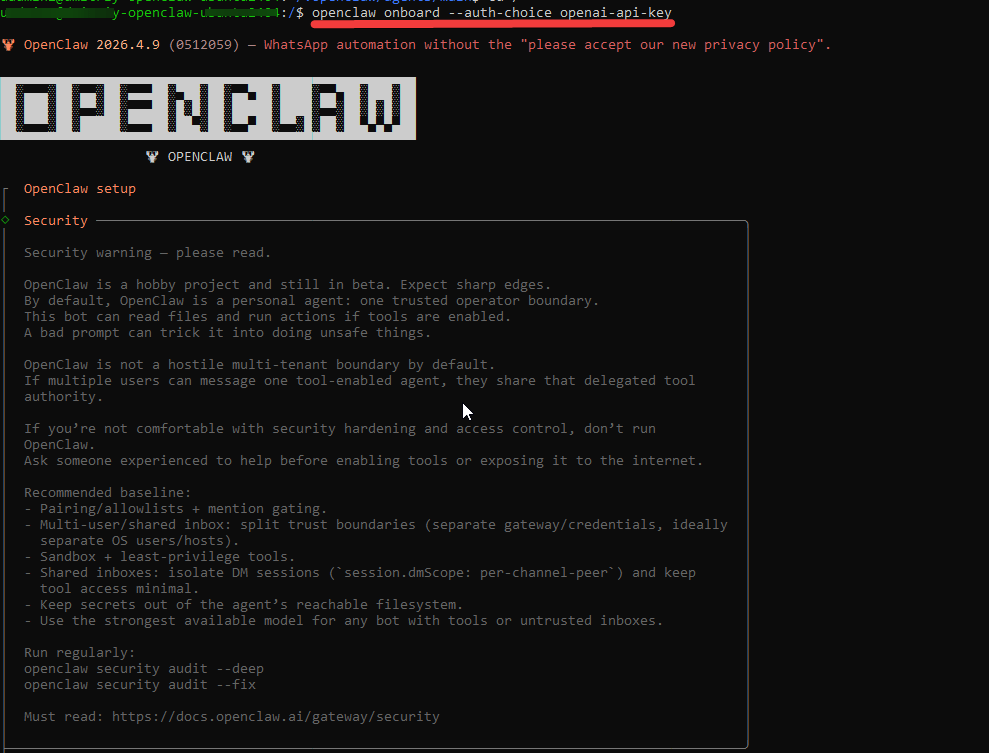
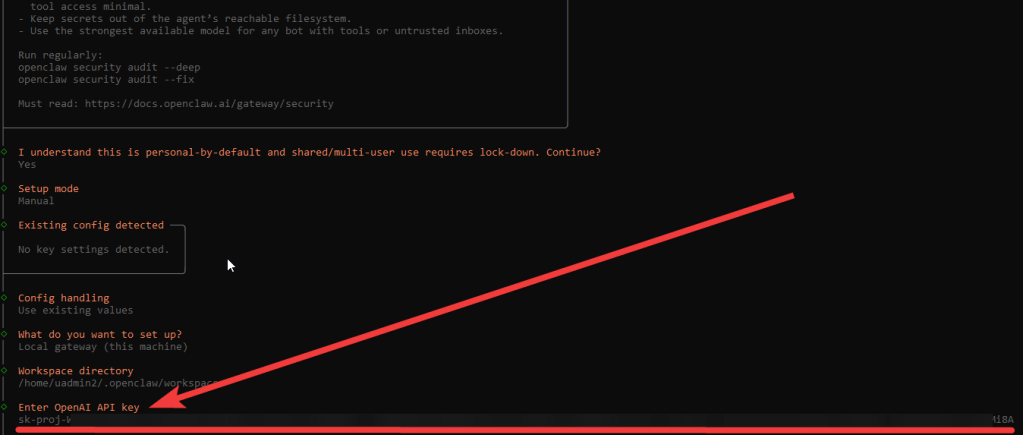
- Add the OpenAI API key when prompted
Useful information
Check the current OpenCLAW version
$openclaw -V
Update OpenClaw and inspect the update channel status
$openclaw update
You can get full help by entering
$openclaw –help

Get more with Web – OpenClaw

