
Time Series Database Server on Windows Server 2025 DC provides an enterprise-grade, cloud-optimized platform for storing and analyzing time-series data with advanced security and scalability features.

Effortless installation. Ready-to-run with easy maintenance. Explore now for a smooth experience!
Configuration and Connection to Time Series Database Server on Windows Server 2025 DC
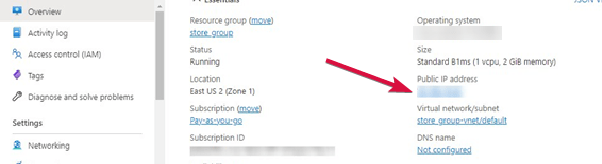
- For the connection to the server, you should know the IP address of the VM. You can find it in the personal account of Azure. You need to select the virtual machine from the list. By clicking the item “Overview”, your IP is displayed in the “Public IP Address” line.
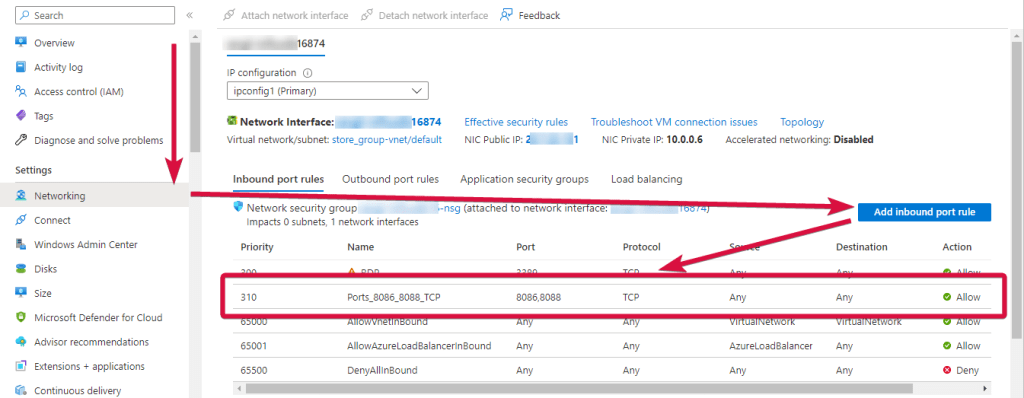
- To work, you should open 8086 and 8088 TCP ports in the network properties in the Azure firewall.
Connecting to the server
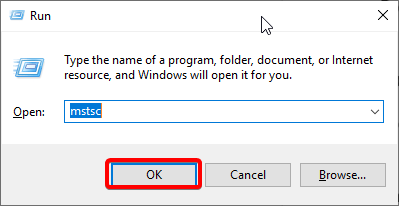
- To connect to the virtual machine, run the “Remote Desktop Connection” shortcut “Win + R“.
- In the window that appears, enter “mstsc” and click “OK”.
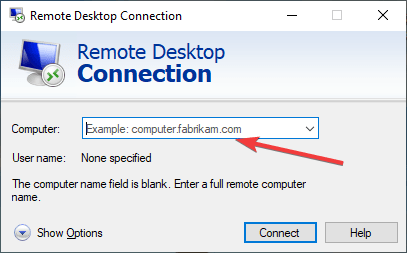
- In the window that appears, enter the IP of the virtual machine and click “Connect”.
- In the window that appears, enter your username and password and click “OK”.
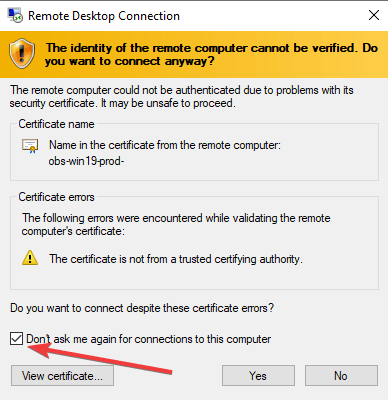
- Check the box and click “Yes”.
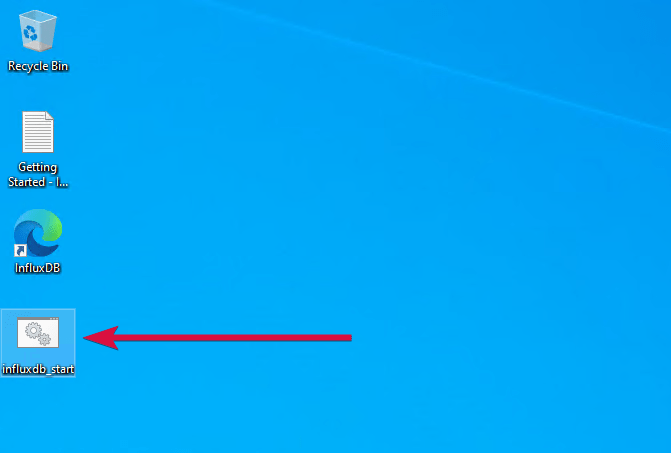
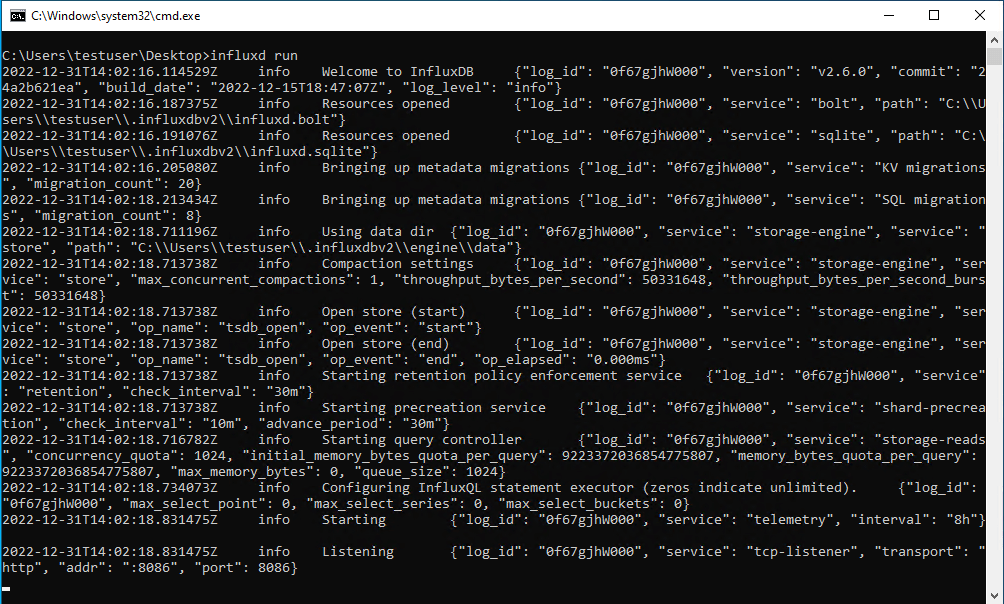
- To start the InfluxDB server, click on the “influxdb_start.bat” console shortcut on the desktop.
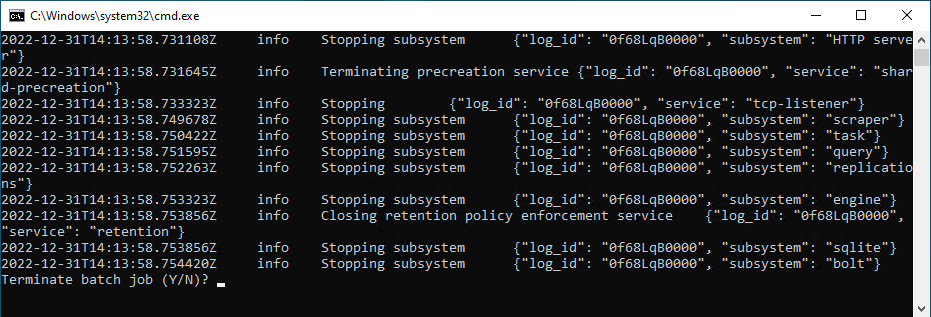
- To stop the server, press the key combination “ctrl + c” in the console, then type “Y” and press “Enter”.
- To open the site, go to the following address in the browser, the shortcut of which is located on the desktop: http://*vm_ip*:8086.

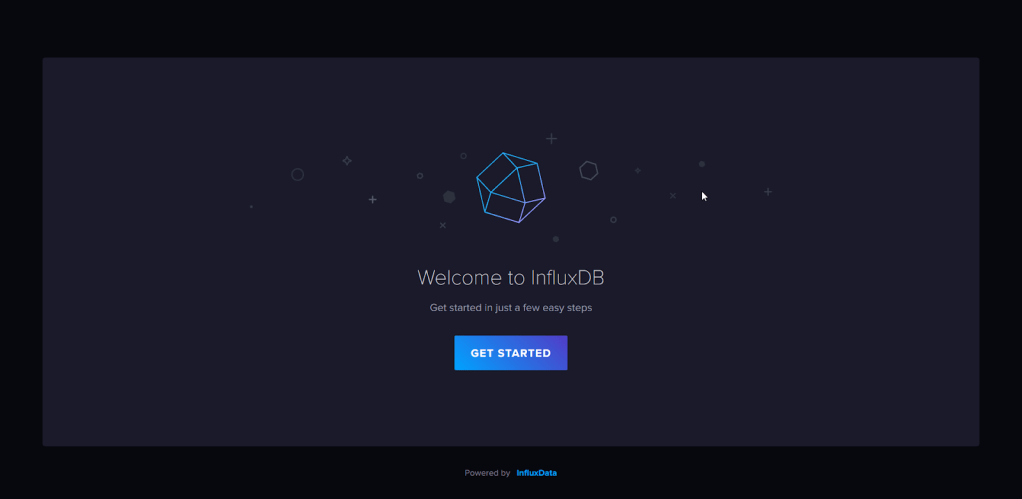
- The start page will open. Click “Set Started”.
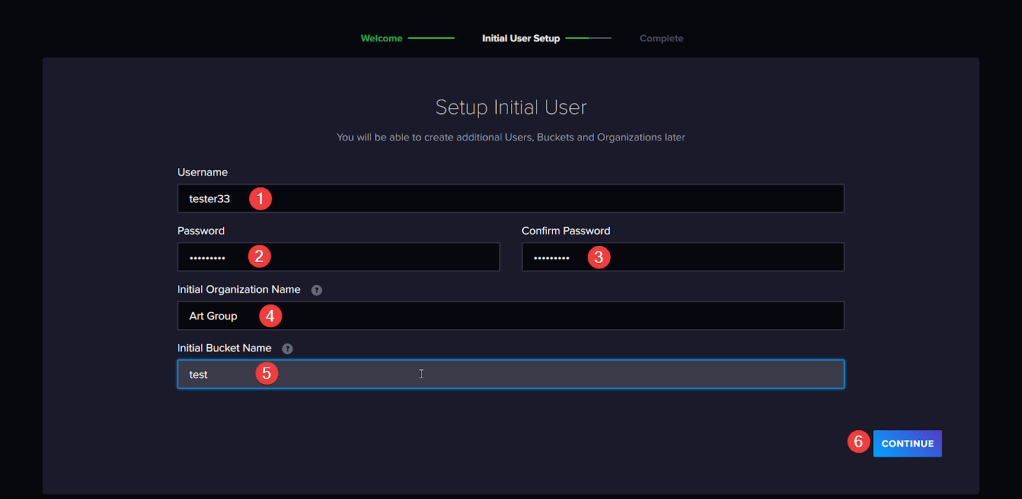
- An authorization page will open. Fill all fields and click “Continue”.
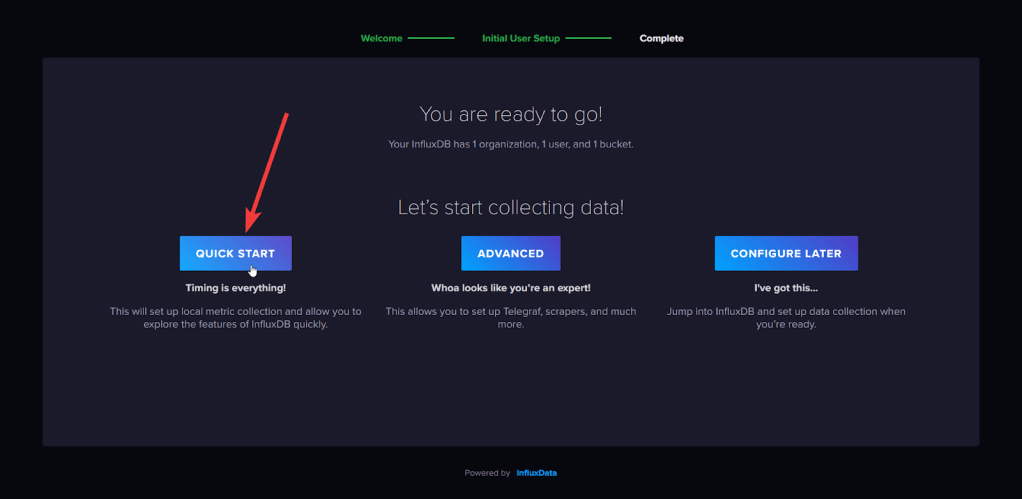
- To use preset settings, click “Quick Start”.
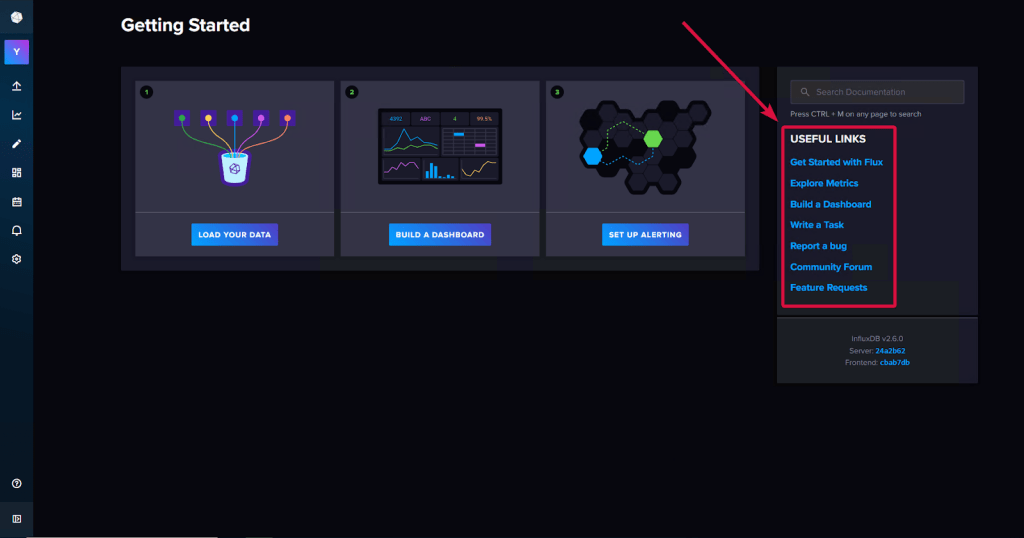
- Now you are ready to work with InfluxDB.
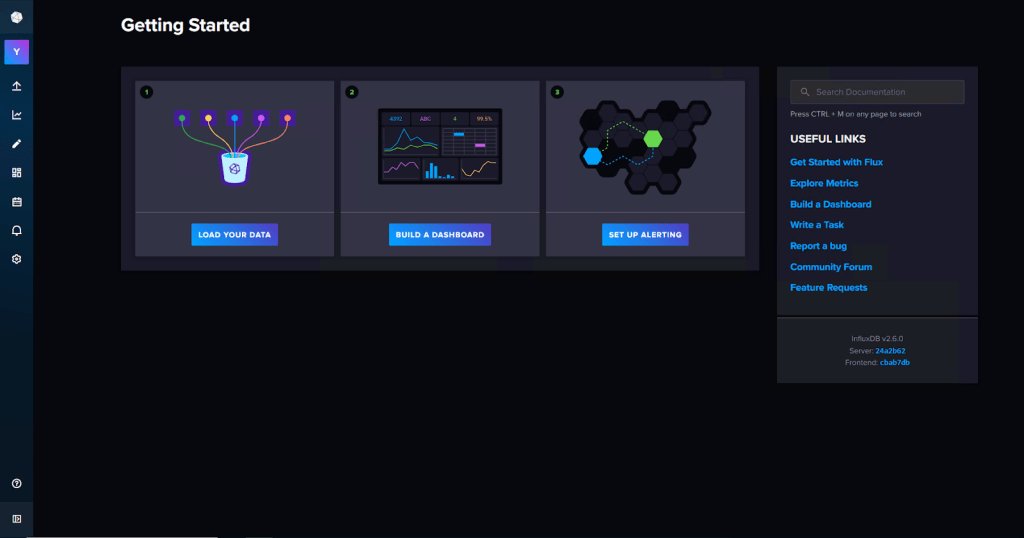
- To get more information, visit Documentation InfluxDB or use the following links.
Now you can work with your own Time Series Database Server.
 Articent Group — Software Apps & Virtual Machine Solutions