

Effortless installation. Ready-to-run with easy maintenance. Explore now for a smooth experience!
Configuration and connection to the SSL VPN Server on Linux 10 (Based on RHEL®)
Connecting to the Server and Creating a User
After purchasing and starting the VM, you should know its IP address. You can find it in your Amazon personal account.
To work, you should have TCP port 22 and UDP port 1194 open in the Amazon firewall network properties.

Before connecting to the server, you must generate a “Private Key” in advance. This can be done by following the instructions in the guide, “Guidance on usage: Key Pair Setup for Seamless VM Access” (be sure to select the “.ppk” option in step 3).
- Using the VPN Server with a dynamic Public IP Address
1.1. Connecting to the VM using the PuTTY application. You can download it at the following link – Download.
- Go to the SSH section on the left panel, and then to Auth.
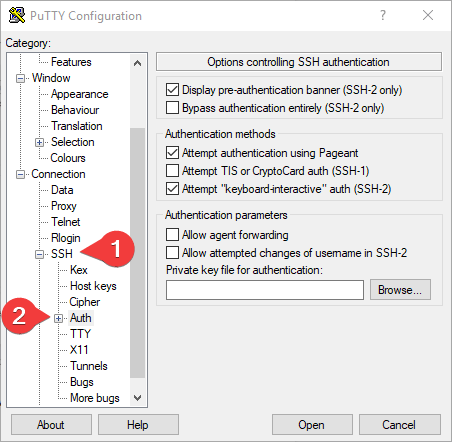
- In the “Auth” section, click “Browse” and specify the path to the .ppk file you received earlier.
- Return to the “Session” home page, enter the Public IP Address of the VM, and click “Open.”

- In the opened console, you will need to enter the login ec2-user.
1.2. Next, you should enter the following commands:
> sudo vpnusers

1.3. To create a new user, type “1” and press Enter.

1.4. Write a username and press Enter.

1.5. The last line will tell you where the config file is available (testuser.ovpn in this case). You need to copy the contents of this file. To do this, display the contents of the file on the screen with the following command:
> sudo cat /etc/openvpn/clientconfigs/”exampleuser”.ovpn
Don’t forget to replace “exampleuser” with the username that was created in step 1.4.

1.6. Copy the entire contents of the file by selecting it and pressing Ctrl + C
1.7. Open Notepad or any other text editor and paste the contents of the file into a blank document
1.8. Save the file with the extension .ovpn

2. When an EC2 instance is stopped and started, AWS assigns it a new public IPv4 address.
After every Stop and Start operation, retrieve and save the updated configuration as follows:
2.1. Follow the steps from the previous section to connect to the VM using PuTTY
2.2. Run the following command: sudo showconfig
2.3. Enter 1 and press Enter to display the list of existing .ovpn configuration files

2.4. The main menu will appear again. Enter 2 and press Enter

2.5. Enter the number of the configuration file you want to display and press Enter.

2.6. Copy the contents of the file between the lines “BEGIN CONFIGURATION” and “END CONFIGURATION” by selecting them and pressing Ctrl + C
2.7. Open Notepad or any other text editor and paste the contents of the file into a blank document
2.8. Save the file with the extension .ovpn
3. Using the VPN Server with an Elastic IP Address
If you do not want to update your .ovpn configuration files every time the virtual machine is stopped and started, you can assign an Elastic IP address to the instance.
An Elastic IP address remains the same after Stop and Start operations. Therefore, the VPN configuration files will continue to use the correct server address.
For a new deployment, we recommend assigning an Elastic IP address before creating the first VPN user:
3.1. Open the Amazon EC2 console
3.2. In the navigation panel, select Network & Security > Elastic IPs
3.3. Click Allocate Elastic IP address, and then click Allocate
3.4. Select the allocated Elastic IP address and click Actions > Associate Elastic IP address
3.5. Select the VPN Server instance and click Associate
3.6. Reboot the instance so that the server scripts can update the OpenVPN configuration
3.7. Wait until the instance is running and all status checks have passed
3.8. Connect to the VM through PuTTY using the Elastic IP address, and then create the VPN user as described in section 1
The generated .ovpn configuration will contain the Elastic IP address and will not need to be updated after the instance is stopped and started.
Creating a VPN Connection Using OpenVPN Client
- Run OpenVPN Connect. If you don’t have OpenVPN installed, you can download it here.
- In the OpenVPN Connect window, specify the path to the .ovpn file you saved earlier and click “OK”.

- Click Connect

- If the connection is successful, a confirmation window will be displayed.

- You can verify your IP address has changed by visiting What Is My IP both before and after connecting to OpenVPN.
Now you can use the secure and fast OpenVPN solution.

