

Effortless installation. Ready-to-run with easy maintenance. Explore now for a smooth experience!
Configuration and connection to SoftEther VPN Server on Debian 13
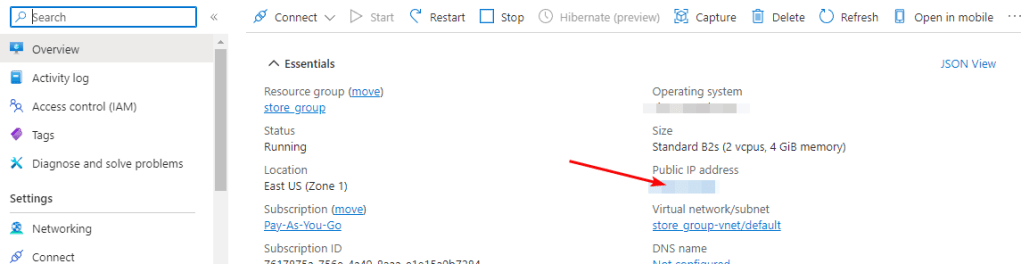
For the connection to the server, you should know the IP address of the VM. You can find it in the personal account of Azure. You need to select the virtual machine from the list. By clicking the item “Overview”, your IP is displayed in the line “Public IP Address”.
For the VM to work correctly, ports TCP 22, 443, 992, 1194, 5555, and UDP 1194 should be open. Check this in the Network Settings of the VM.
Software installation
- To start remote server administration on the operator’s computer, you need to install SoftEther VPN Server Manager.
- In the “Select Component” drop-down list, select SoftEther VPN Server Manager for Windows.
- In the Select Platform drop-down list, select Windows.
- Download links will display. Select the latest version.
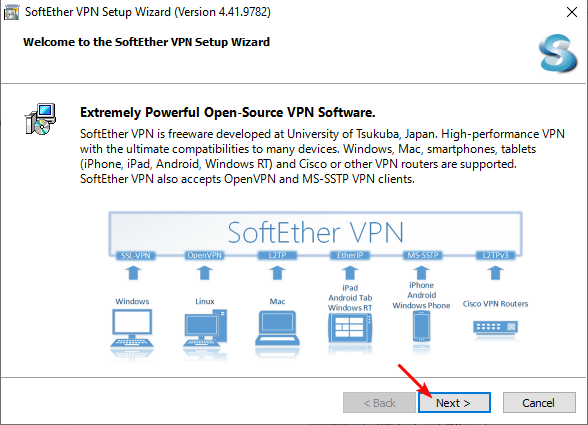
- Download the SoftEther VPN Server installer and run it after completing the download. In the window that opens, click “Next”:
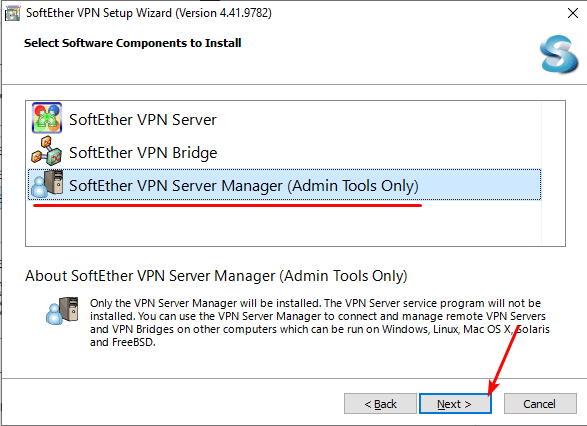
- Select the “SoftEther VPN Server Manager (Admin Tools Only)” and click “Next”:
- After installation, run the program shortcut from the desktop.
Configuring the server
- When opening, the following window will be displayed:
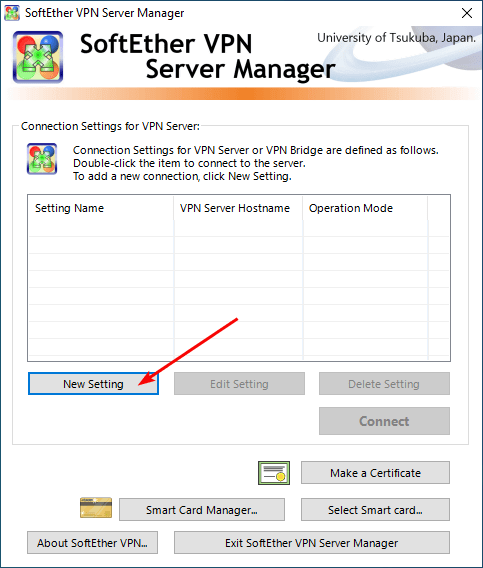
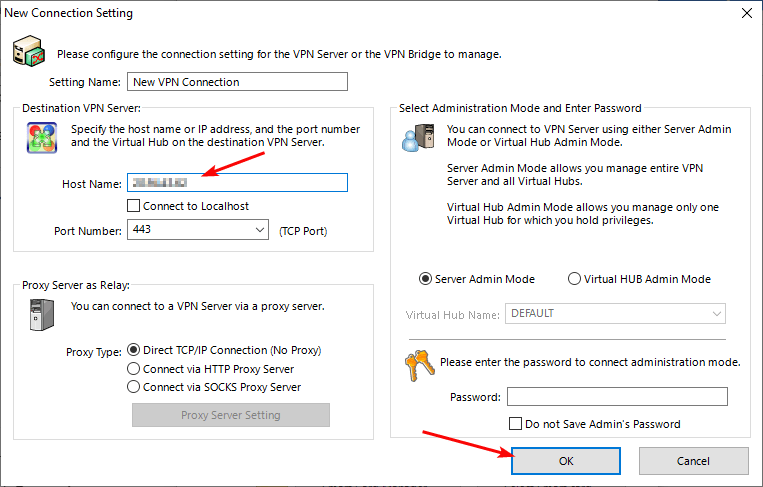
You must create a new connection. To do this, click on the button New Settings.
- Specify the IP address of the Azure virtual machine in the Host Name line. Leave port 443 by default and click OK.
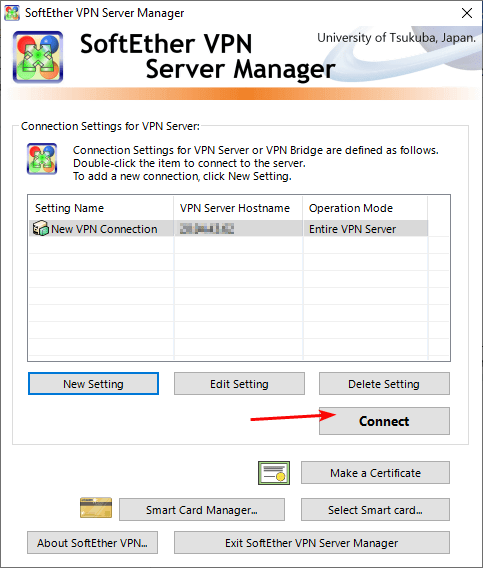
- To start the VPN Server admin panel, click Connect.
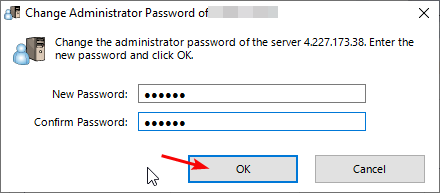
- Upon first authorization, you need to set a new administrator password to connect to the server.
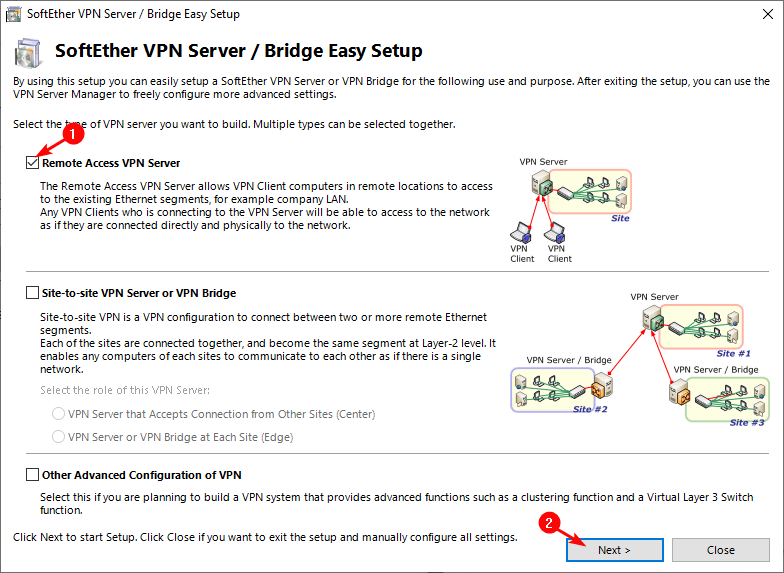
- Next, in the “SoftEther VPN Server / Bridge Easy Setup” window, select the setting Remote Access VPN Server and click Next:
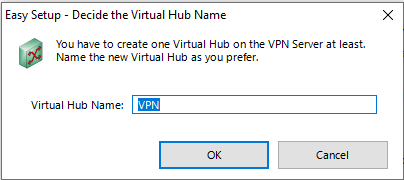
- Next, enter a name for the hub you want and click OK:
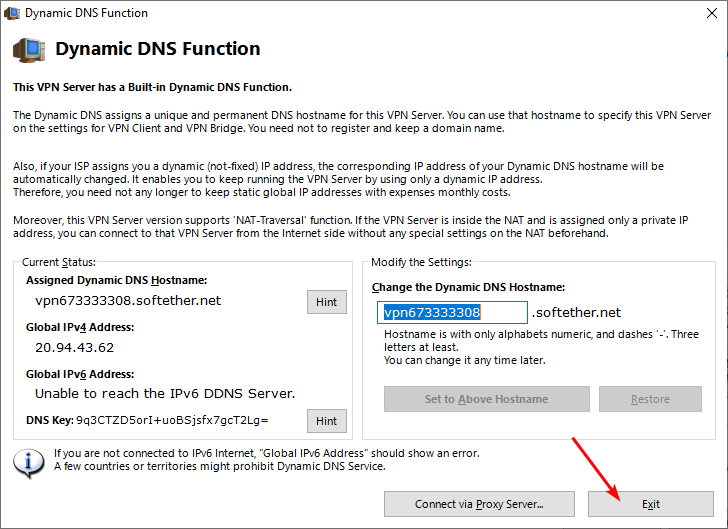
- Click Exit in the “Dynamic DNS Function” window:
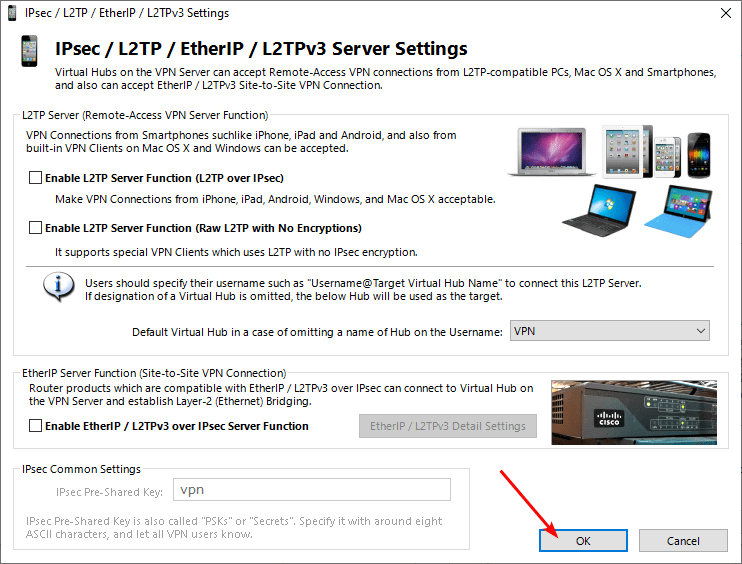
- Click OK in the “IP / L2TP / EtherIP / L2TPv3 Settings” window:
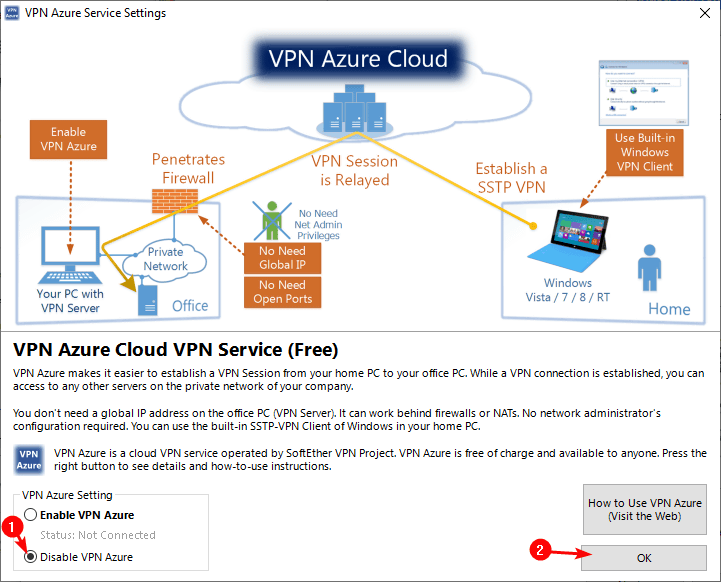
- Next, select Disable VPN Azure and click OK.
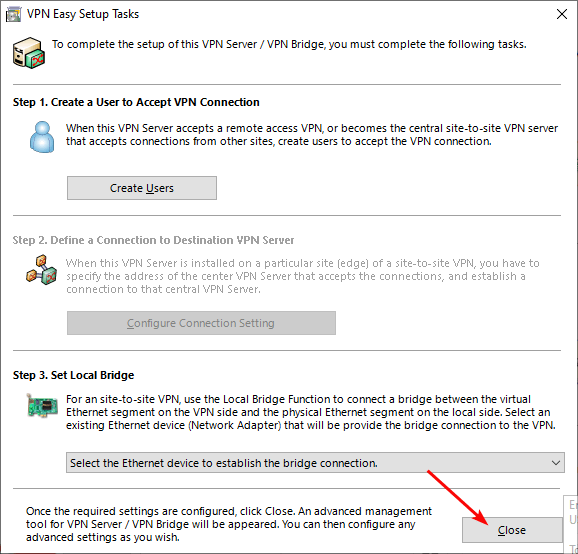
- Next, close the window “VPN Easy Setup Tasks”.
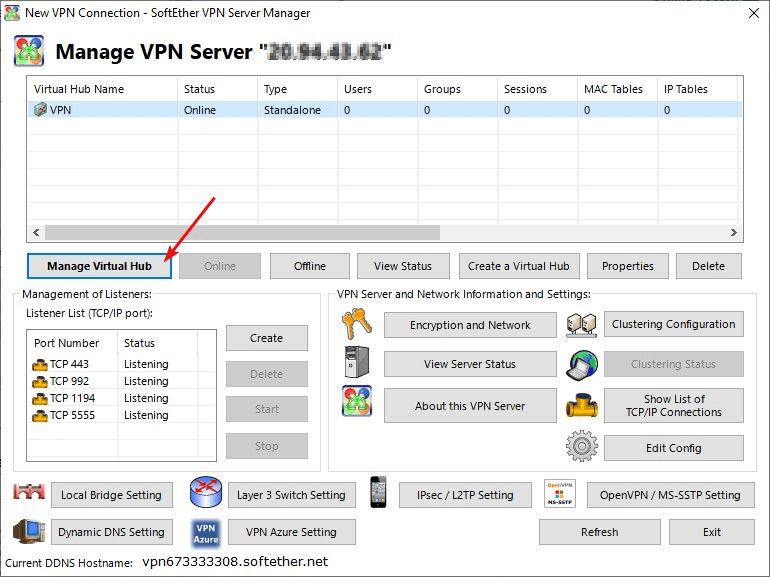
- Also, when creating each hub, you need to enable the Virtual NAT function. For this, you need to click “Manage Virtual Hub”:
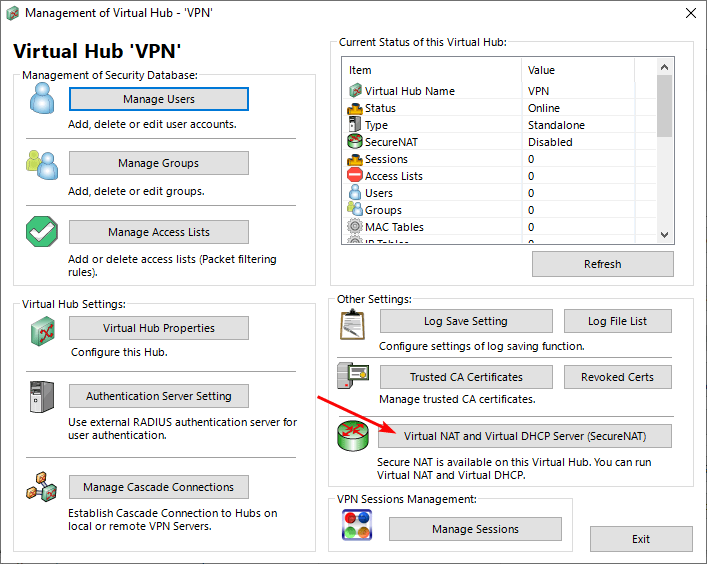
- Open “Virtual NAT and Virtual DHCP Server (SecureNAT)”:
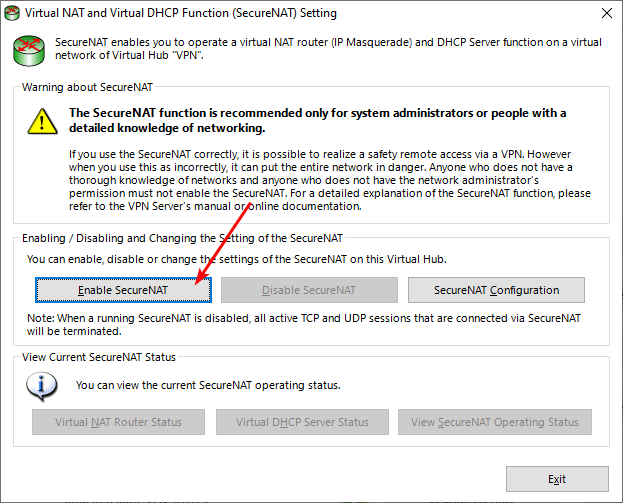
- Click “Enable SecureNAT”:
Adding new users
- To work with a VPN, at first, you should add a user to the app.
Click on the “Manage Virtual Hub” button:

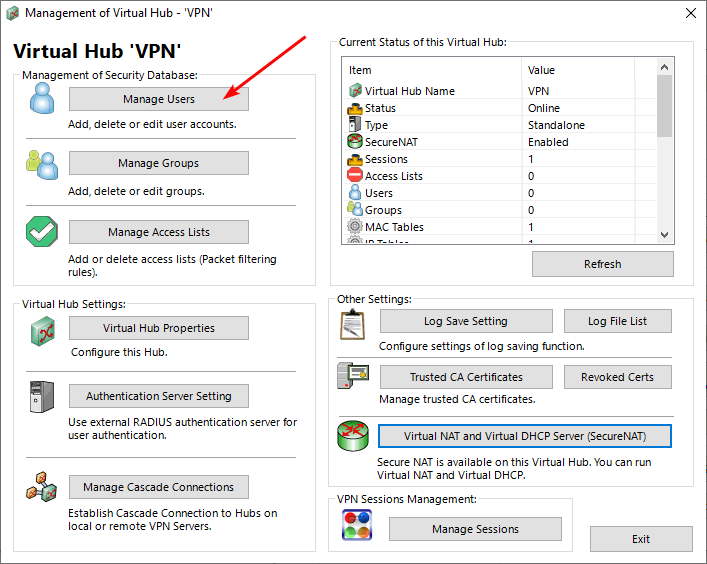
- Then click on the “Manage Users” button:
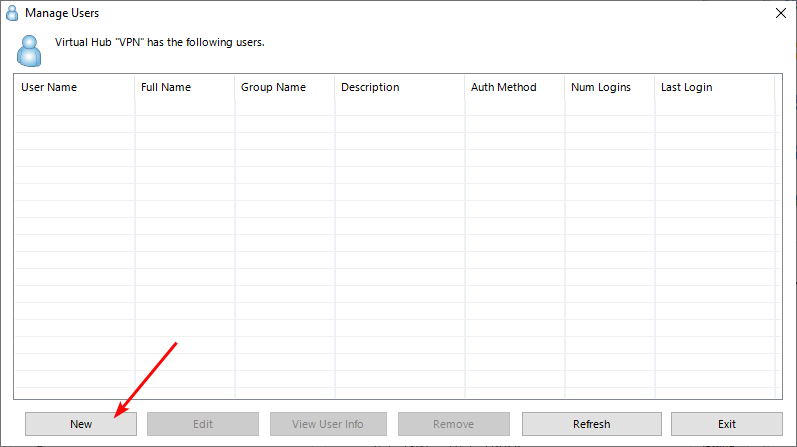
- To create a new user, click “New”.
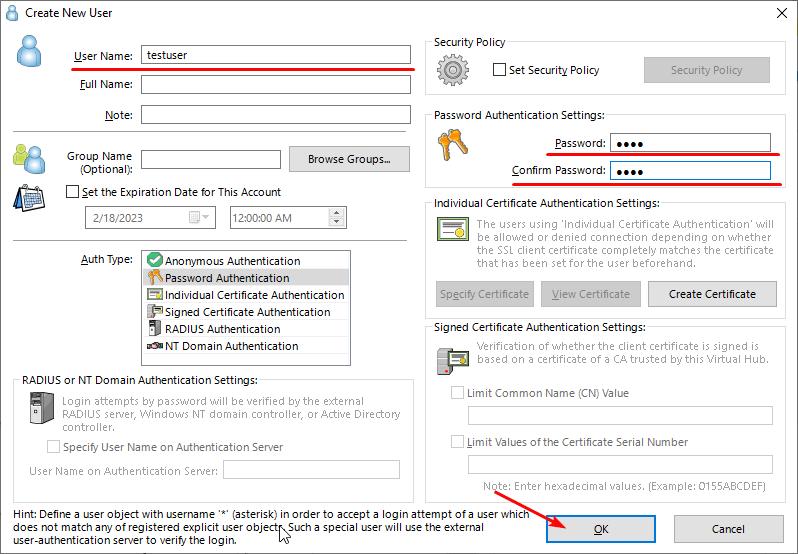
- It’s necessary to insert the name of the user into the “User Name” field, type the password into the “Password” field, and verify it by re-entering the password into the “Confirm Password” field. After the data were entered, click “OK”.
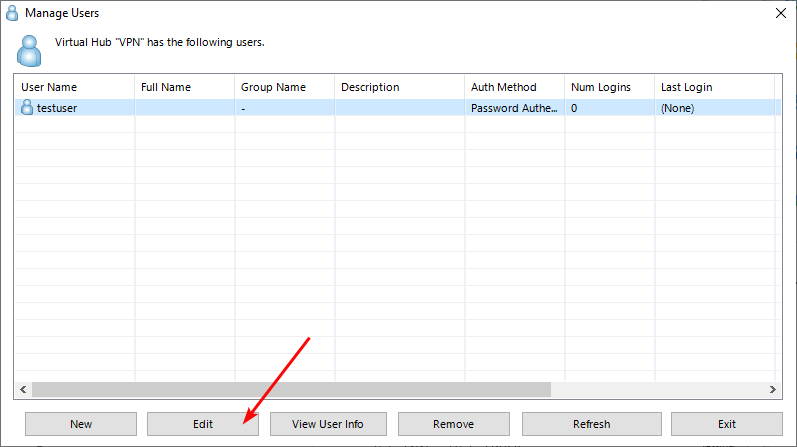
- To change a user’s credentials, select the user and click “Edit”.
Creating a configuration file
- To create configuration files, click on the “OpenVPN / MS-SSTP Settings” button.
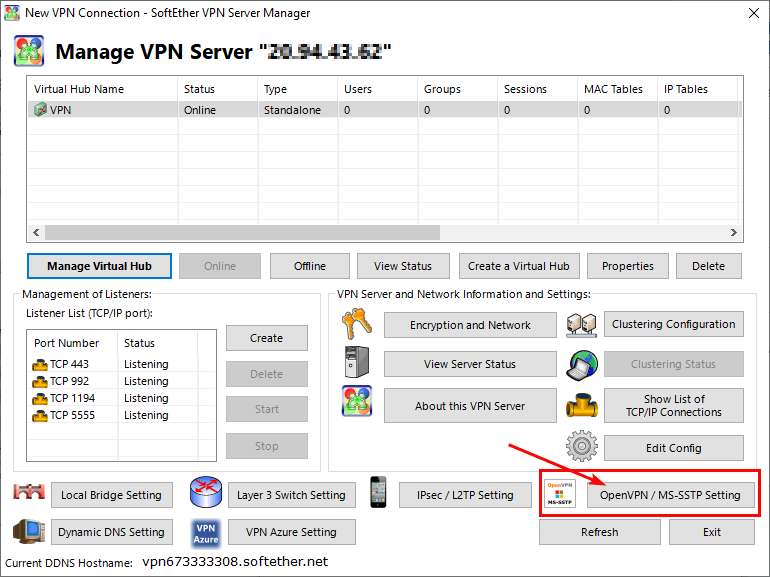
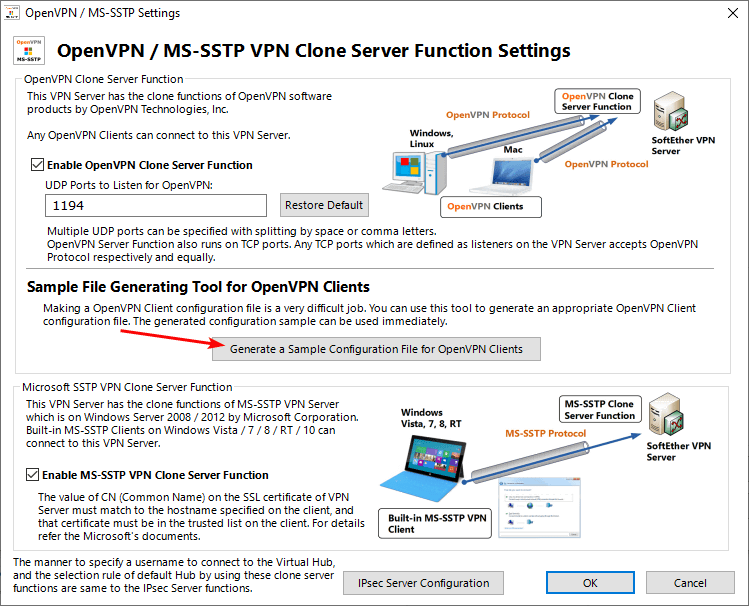
- Click on the “Generate a Sample Configuration File for OpenVPN Clients” button.
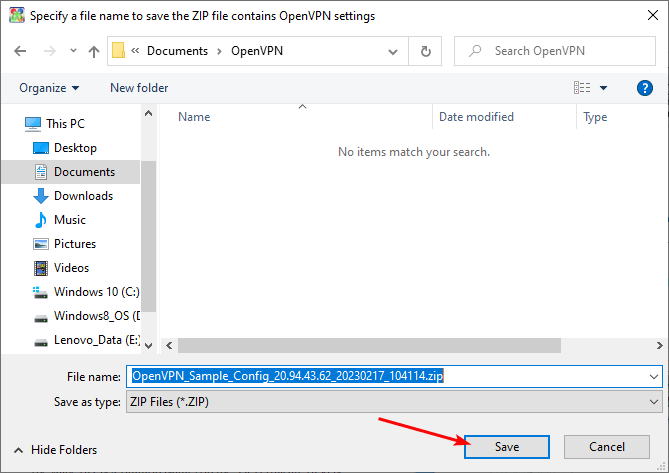
- When the window of Windows Explorer is opened, select the path to save the archive:
- There are the following files in the saved archive:
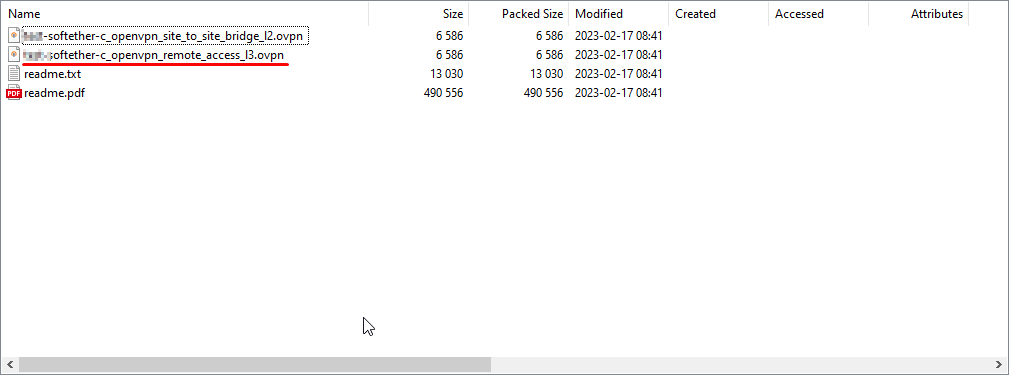
- You should save the file named “…_openvpn_remote_access_l3.ovpn”.
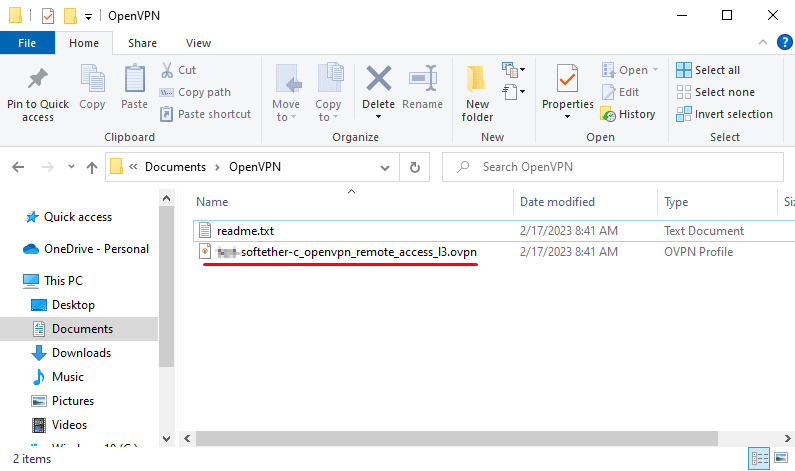
Customize your VPN client
- To customize the VPN Client, you need the OpenVPN Client for work. Go to the site: Community Downloads | OpenVPN, download and install the OpenVPN client, depending on your OS, Windows:

- Now the OpenVPN is ready to work, and you can run it. After it is started, add your VPN configuration file.
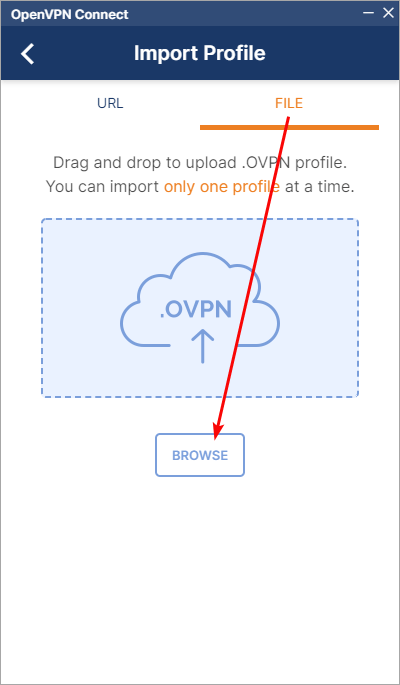
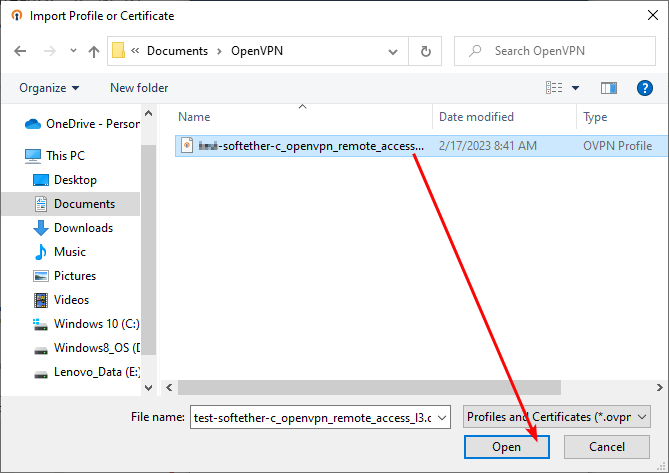
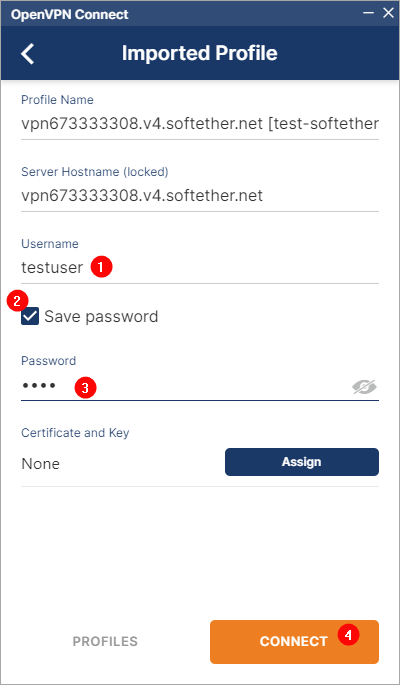
- Then enter “Username” (1), select the checkbox “Save password” (2) for your comfort, enter “Password” (3), and click “Connect” (4).
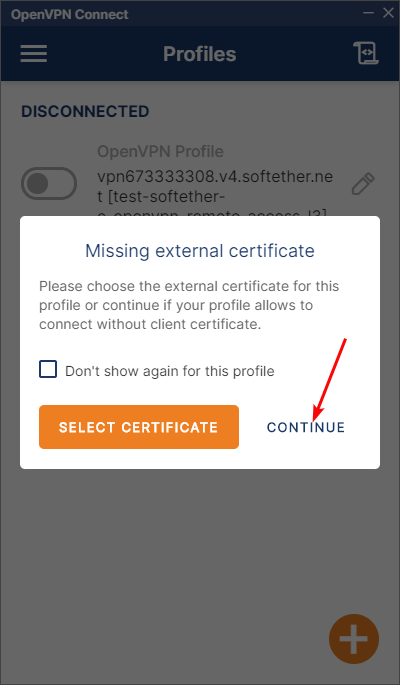
- Click “Continue” to confirm use without a certificate.
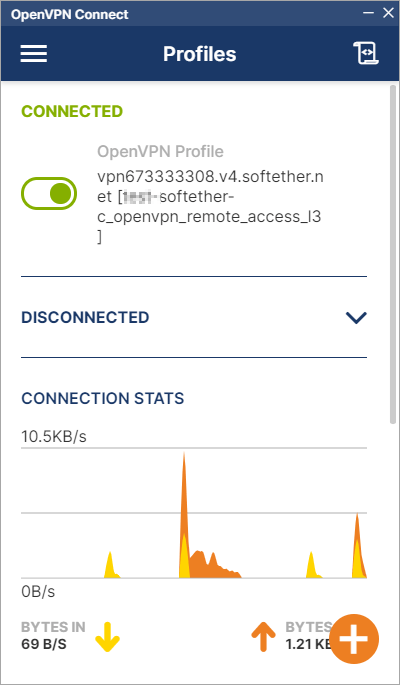
Now you can use your Virtual Private Network.
 Articent Group — Software Apps & Virtual Machine Solutions