
Settings and Connection to SFTP OpenSSH Server SFTPGo on Windows Server 2016 Datacenter
To ensure the VM operates correctly, you need to open TCP ports 2022 and 8080 in the AWS Firewall Security Group.
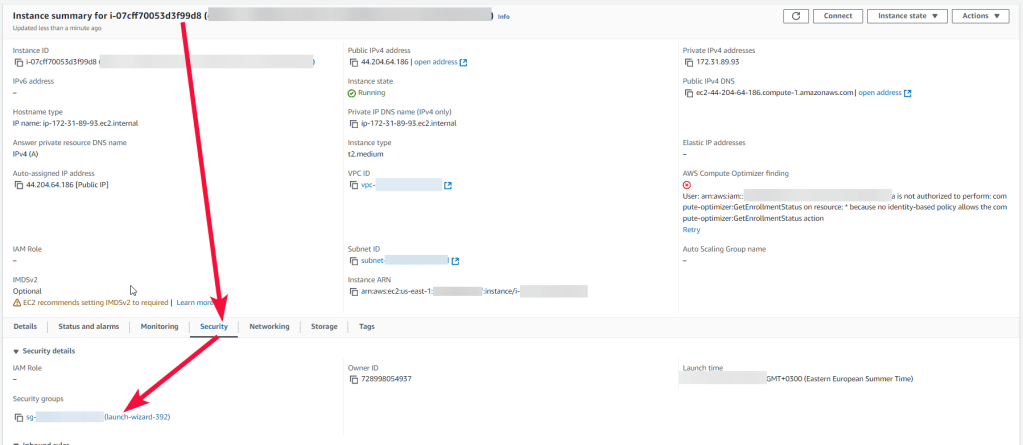
Connecting to the Server
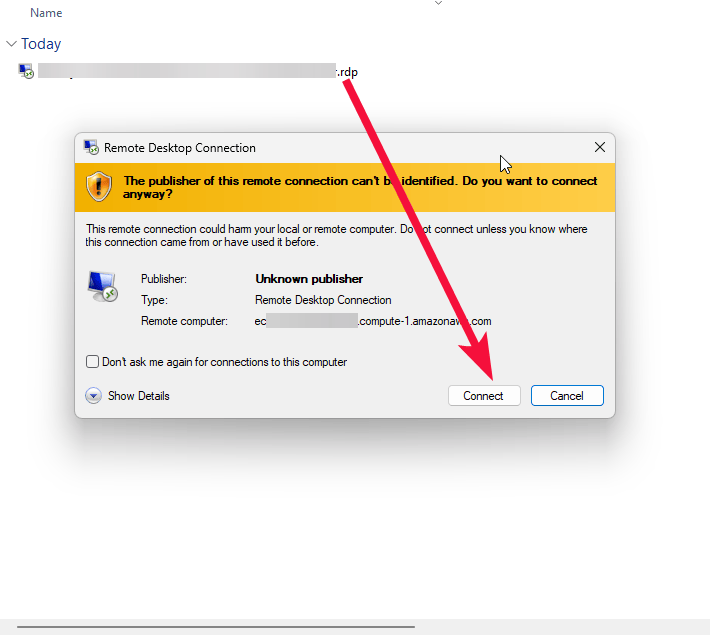
- To connect to the Server, you should generate a “Private Key” in advance. This can be done using the Guidance on usage. To connect to the virtual machine, click the Remote Desktop file from step 10 of the Guidance on usage.
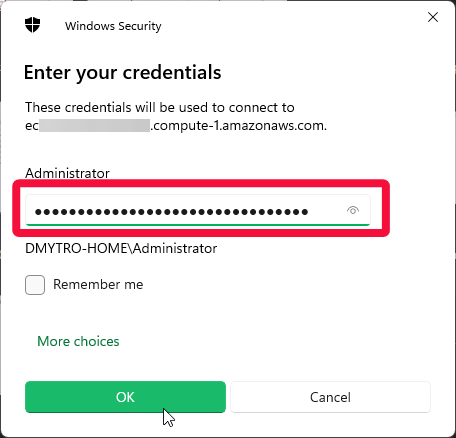
- In the window that appears, enter the password from step 12 of the Guidance on usage and click OK.
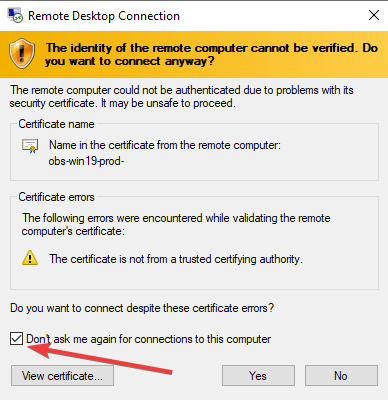
- Check the box and click Yes.
Creating Users
- Connect to SFTPGo using the shortcut web-connect-admin on your desktop.

You can also connect to WebAdmin by entering http://”your VM’s IP address”:8080/web/admin in your device’s browser.
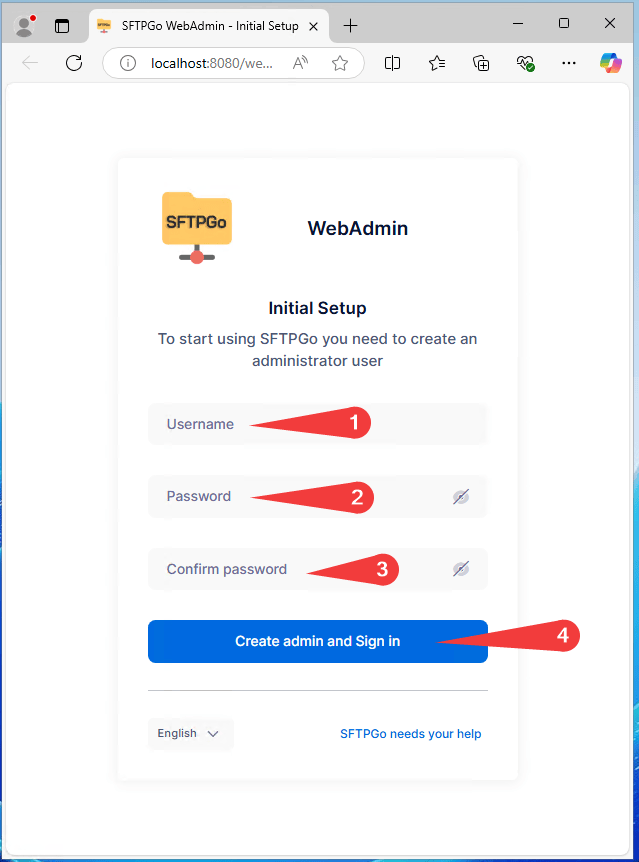
- You will be prompted to create an administrator user. Enter Username (1), Password (2), Password confirmation (3), and click Create admin and Sign in (4).
- If you want to enable two-factor authentication, set the Configuration field to Default (1) and click Enable (2).
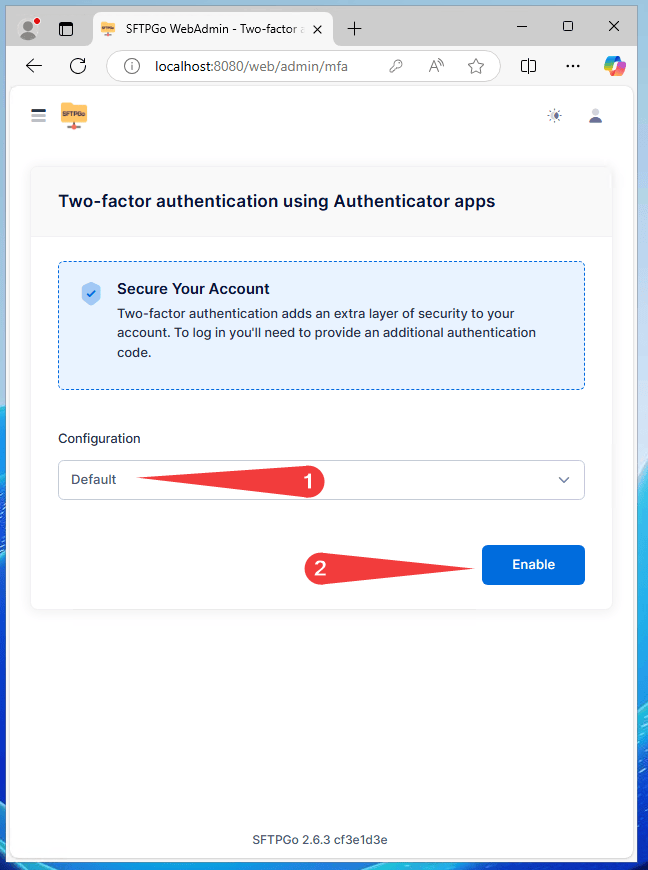
You can skip this step.
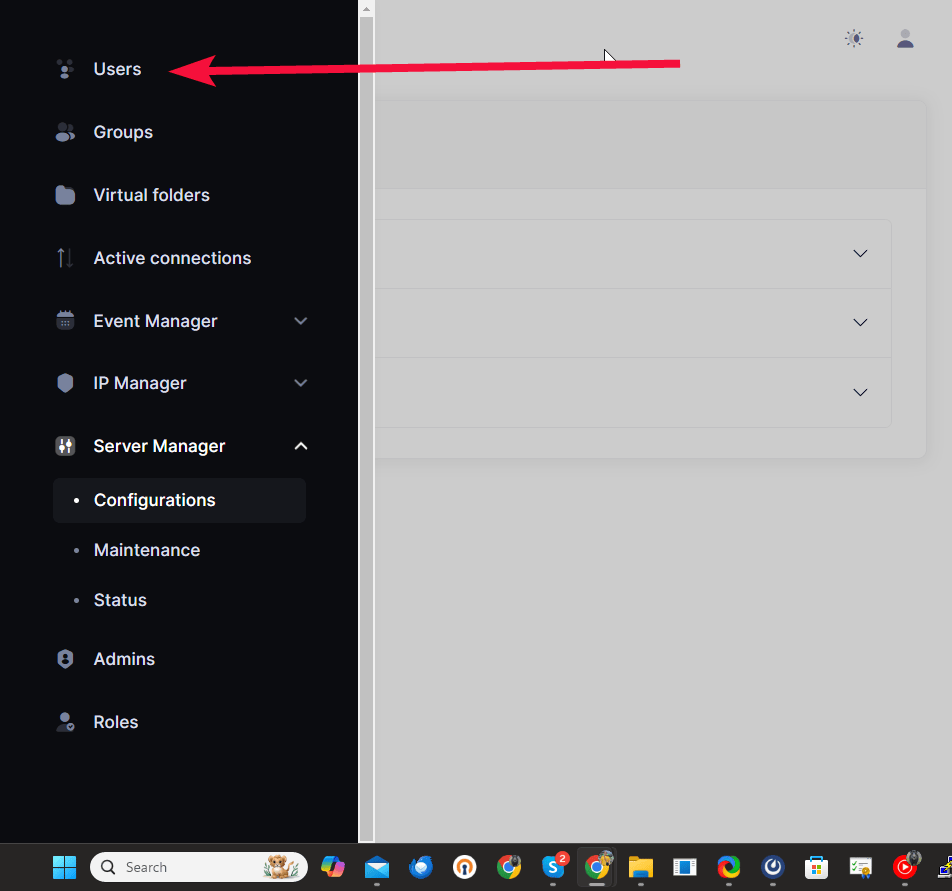
- To create a new user, go to Users.
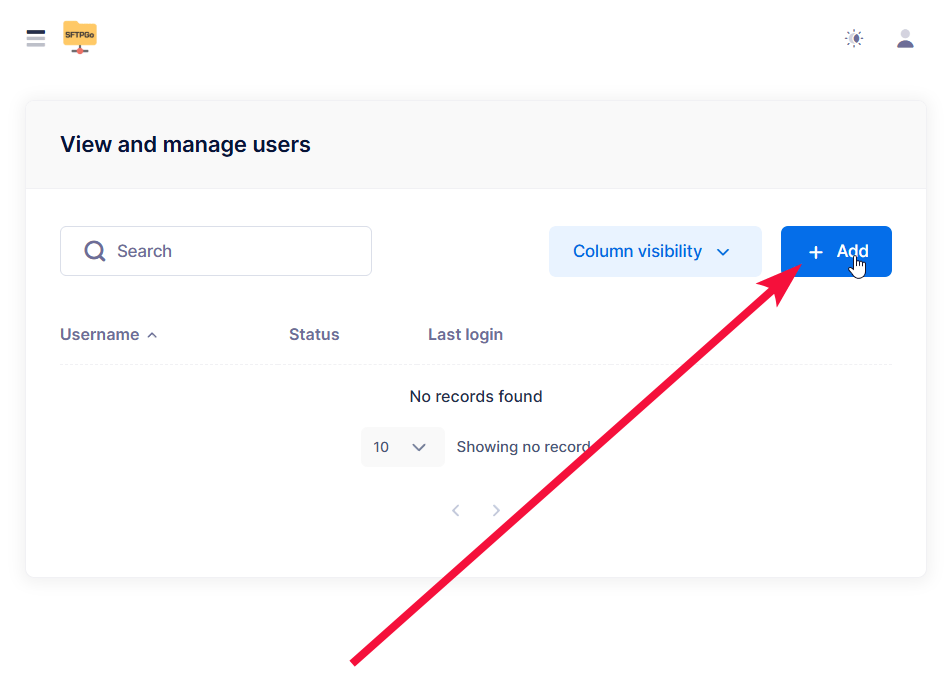
- And click Add
- Enter Username (1), password (2), Root directory (3), and click Save.
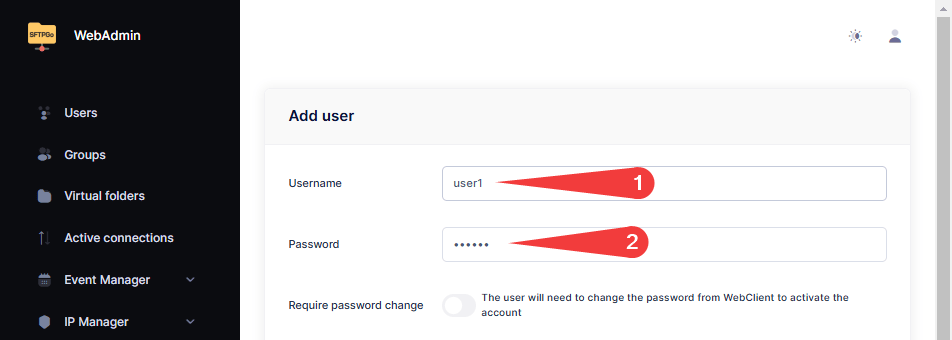
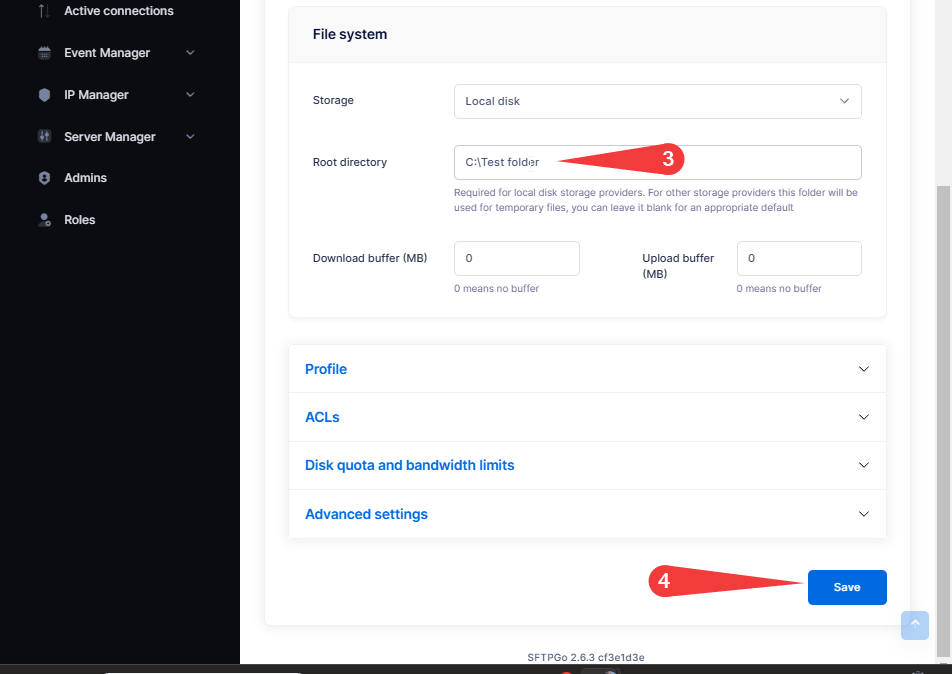
These are required fields. You can fill in all other user parameters later if necessary.
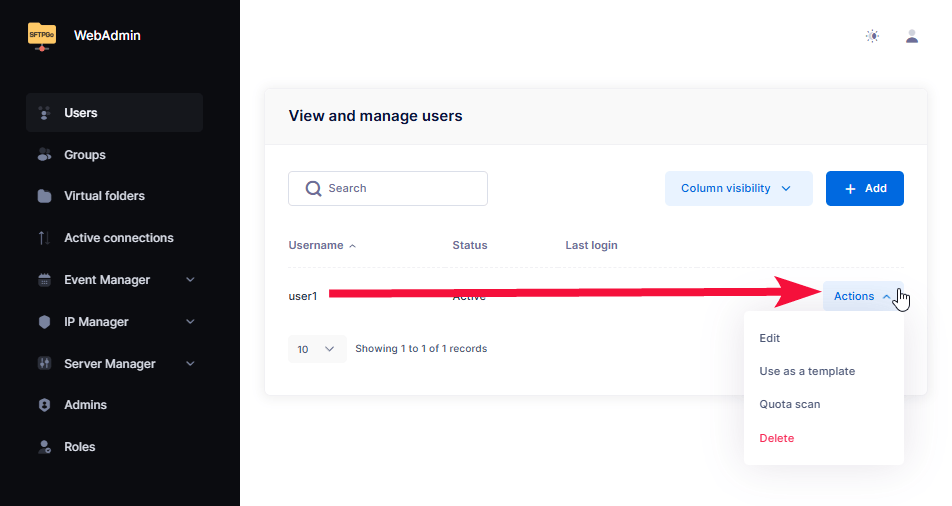
- To manage users, you need to click “Action” on the selected user and select the required item.
Connecting to the server as a user
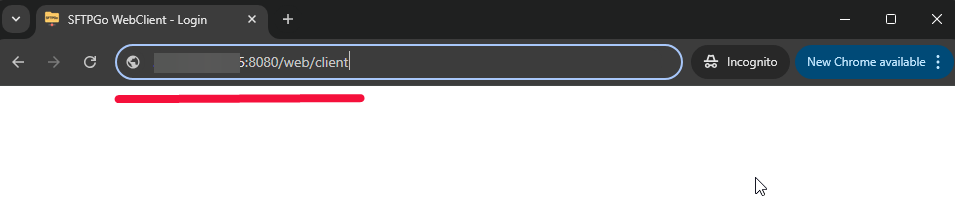
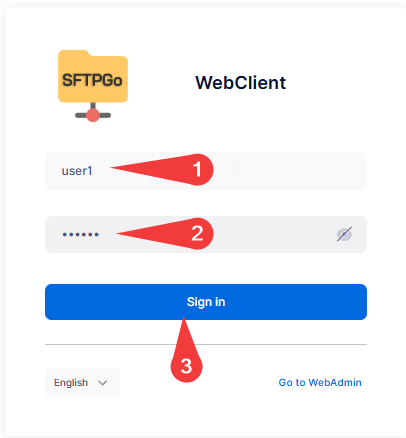
- Enter http://”your VM’s IP address”:8080/web/client in your device’s browser.
- Enter the login (1) and password (2) of the created user and click Sign in (3)
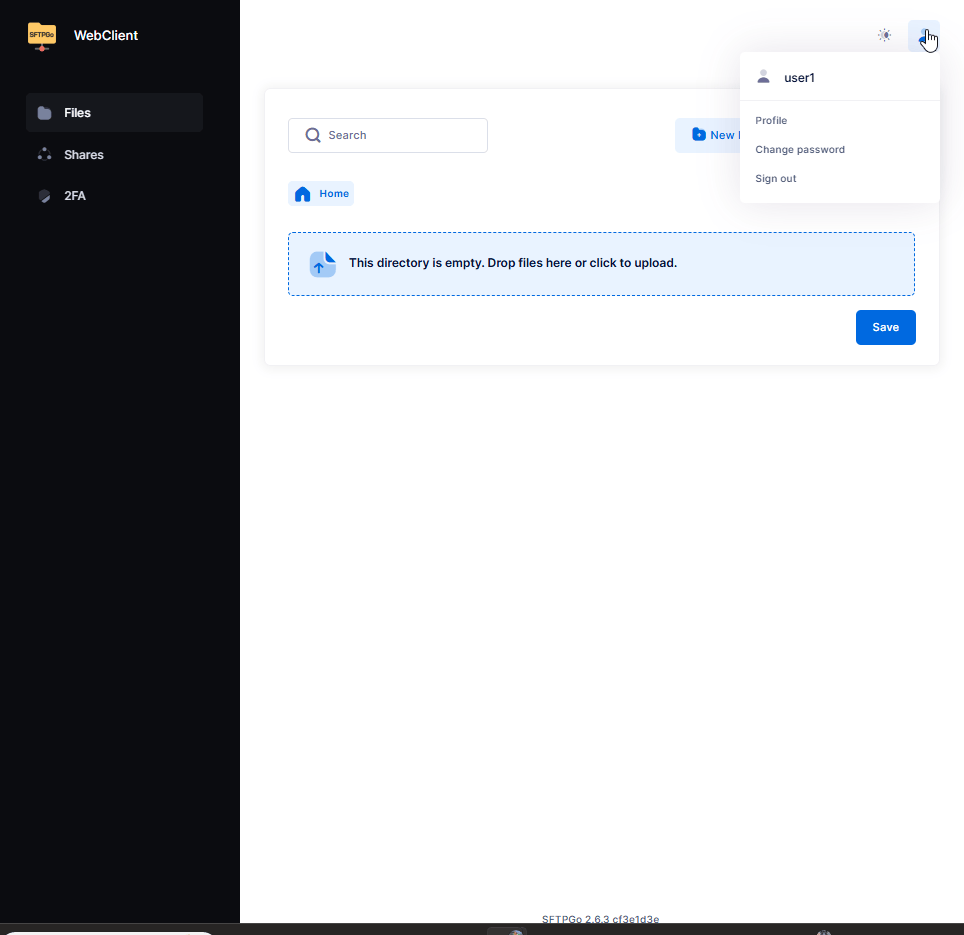
- The user’s root directory is opened.
- You can connect to SFTPGo using the “FileZilla Client” application (you can download it from the link: Download FileZilla Client for Windows (64-bit x86)).
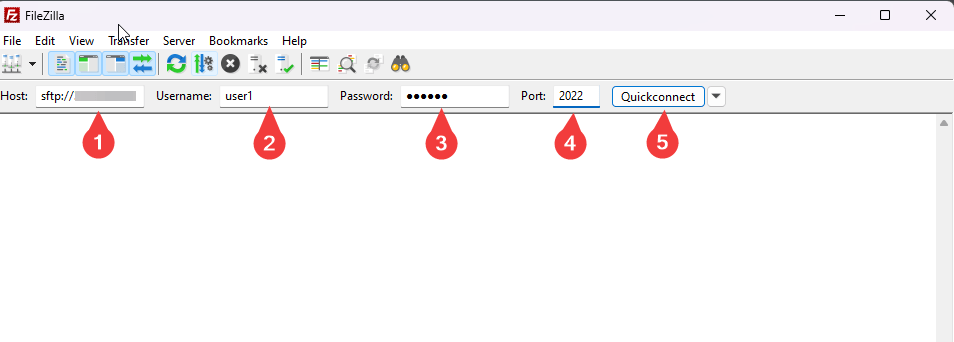
- After installing and running the FileZilla client, you need to follow these steps to connect to the VSFTP server:
- In the Host field, enter sftp://you_VM_IP_address
- In the Username field, enter the login that was created in Step 6 of the previous chapter.
- In the Password field, enter the password that was created in Step 6 of the previous chapter.
- Enter port 2022.
- When the data is entered, press Quickconnect.
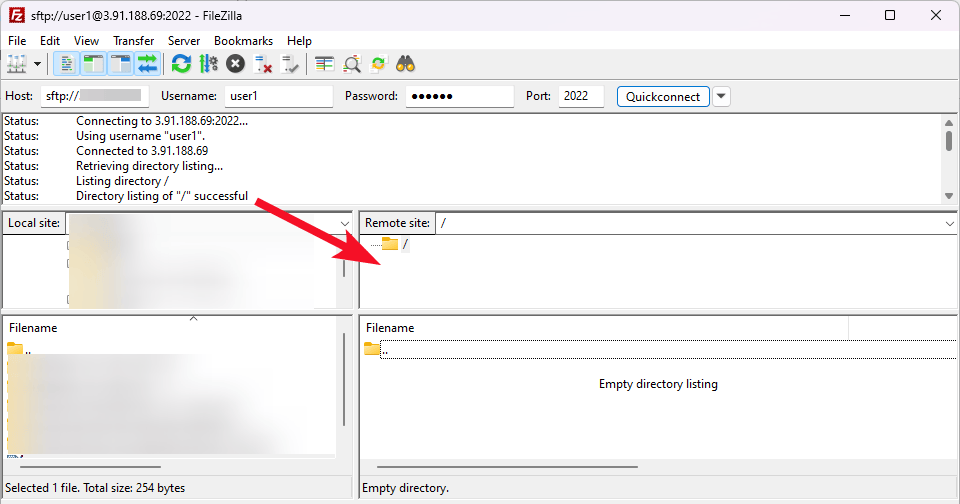
- After entering all the data and clicking on Quickconnect, you will successfully connect to the server.
Official SFTPGo documentation

