
SFTP – OpenSSH FTP Server on SUSE Enterprise Server 15 SP7 provides a dependable and efficient file transfer platform. It ensures secure data handling for enterprise applications.

Built for efficiency, optimized for your needs — get started instantly.
Configuration and Connection to the SFTP – OpenSSH FTP Server on SUSE Enterprise Server 15 SP7
Configuration and Connection to the SFTP – OpenSSH FTP Server on SUSE Enterprise Server 15 SP7
To connect to the Server, you should generate a “Private Key” in advance. This can be done using the following instruction (choose the “file format:” option “.ppk” in step 3) Guidance on usage: Key Pair Setup for Seamless VM Access
Connecting and creating a new user
- Connecting to the VM using the PuTTY application. You can download it at the following link – Download
- Go to section SSH on the left panel, and then to Auth
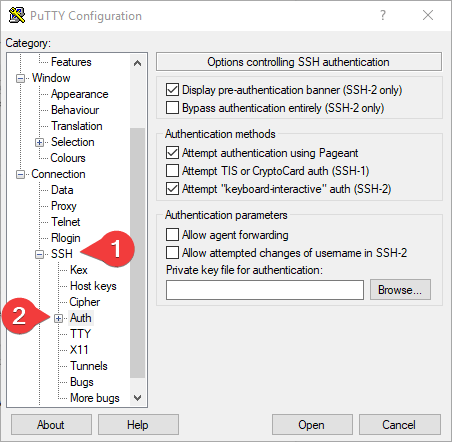
- In the Auth section, click Browse and specify the path to the .ppk file you received earlier.
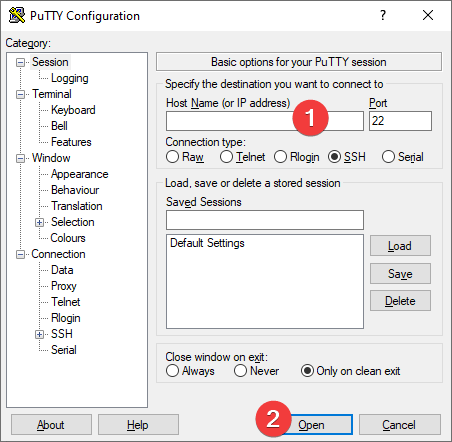
- Return to the Session home page, enter the VM’s IP address (1), and click Open (2).
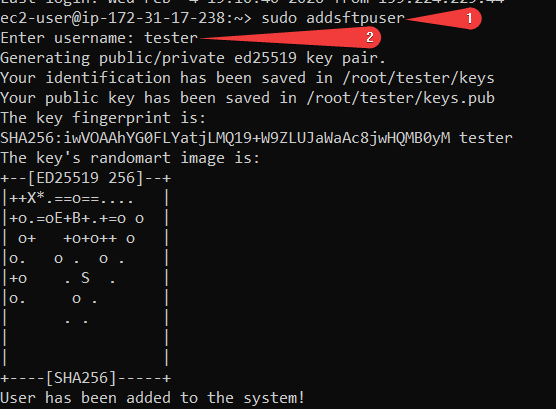
- In the opened console you will need to enter the login ec2-user.
- Run script sudo addsftpuser (1) and enter a username (2)
- Open the file with the generated key:
sudo cat /root/”username”/keys
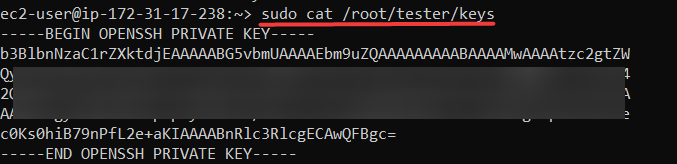
- Copy the key to the text file on your device and save the file as keys.pem
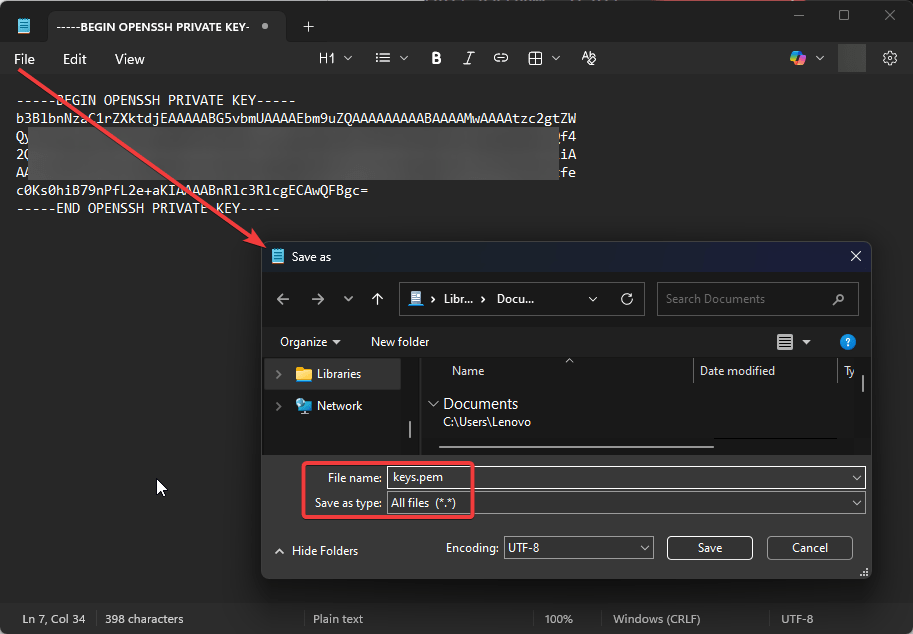
Connecting to SFTP using FileZilla Client
- To connect to the SFTP Server, it is recommended to use the “FileZilla Client” application (you can download it from the following link: Download FileZilla Client for Windows (64bit x86)).
- Run FileZilla Client and open Site Manager
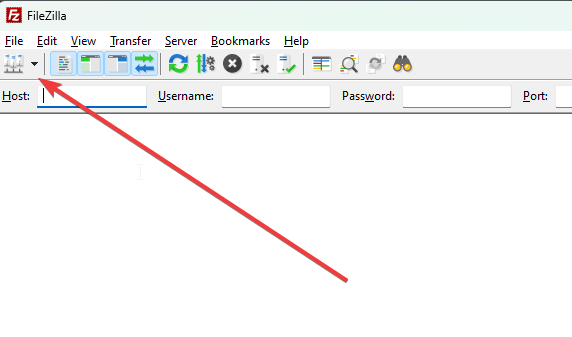
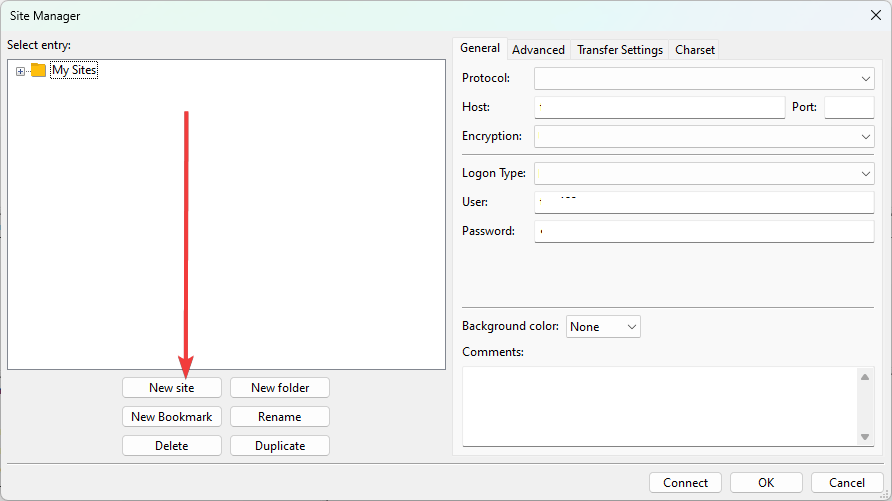
- Create a new site
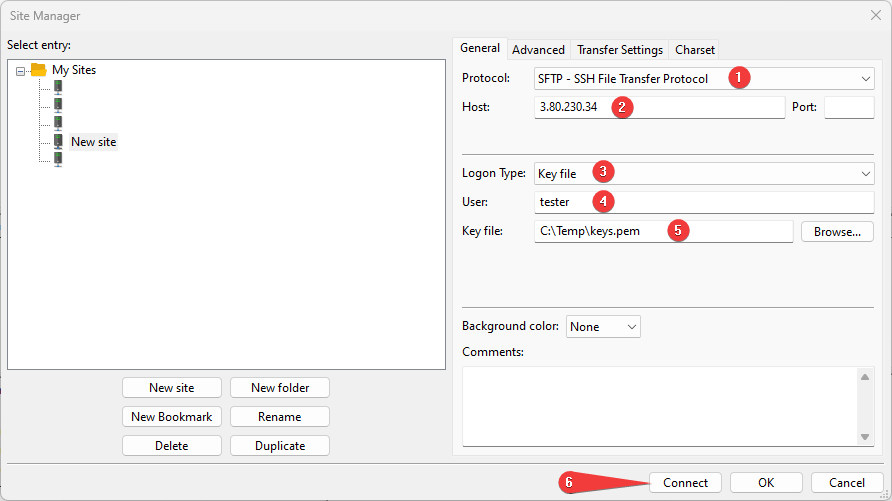
- Enter the required data and fill in the required fields
- select SFTP – SSH File Transfer Protocol (1)
- enter your VM IP address (2)
- select Key file (3)
- enter the name of the created user (4)
- enter the path to the saved keys.pem file (5)
- click Connect (6)
- Once you enter all the data and click Connect, you will successfully connect to the server.
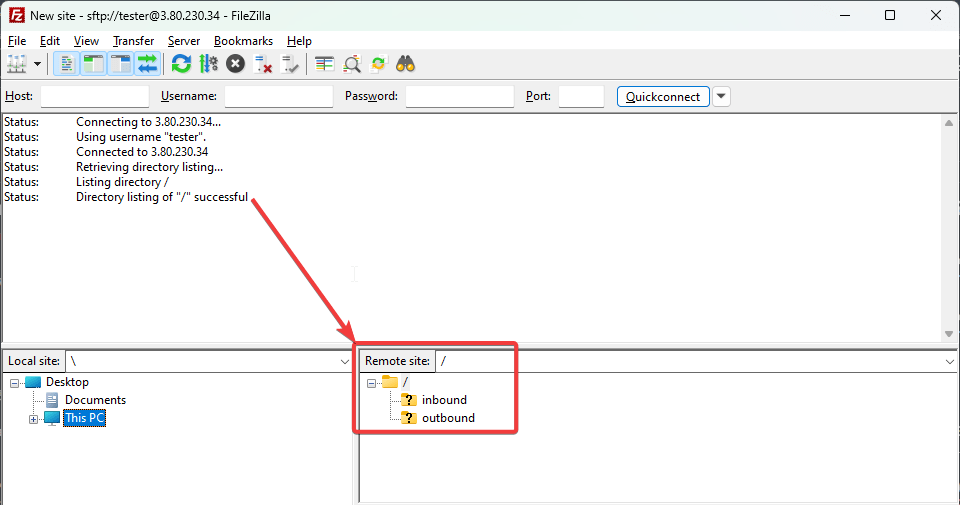
Now you can work with your own SFTP server.
 Articent Group — Software Apps & Virtual Machine Solutions