

A modern, GPU-accelerated virtual machine for PyTorch and JupyterLab on Ubuntu 24.04 LTS, optimized for interactive AI, deep learning, and data science workloads.

Effortless installation. Ready-to-run with easy maintenance. Explore now for a smooth experience!
Connection to PyTorch and JupyterLab with GPU NVIDIA driver + CUDA on Ubuntu 24.04
- Please note the following information before purchasing: The GRID drivers redistributed by Azure don’t work on most non-NV series VMs, such as NC, NCv2, NCv3, ND, and NDv2-series VMs, but do work on the NCasT4v3 series. Learn more – Azure N-series GPU driver setup for Linux – Azure Virtual Machines | Microsoft Learn
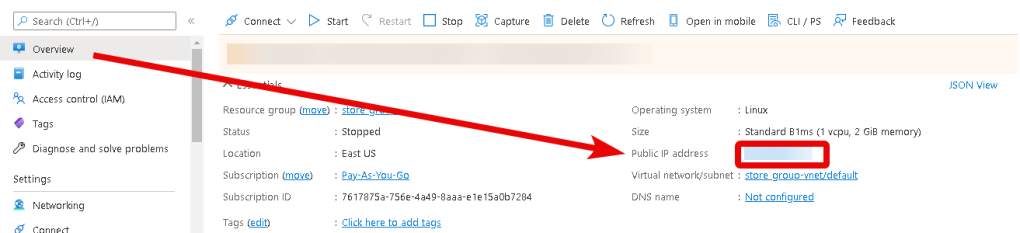
- After purchasing and starting the VM, you should know its IP address. You can find it in your Azure personal account. You need to select the virtual machine from the list. By clicking the item “Overview”, your IP is displayed in the “Public IP Address” line.
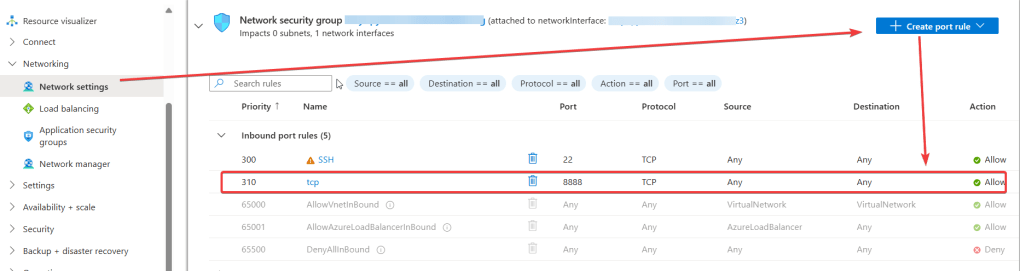
To work, you should open port 8888 TCP in the network properties in the Azure firewall.
- To manage the server, you should connect to a VM.
- With OpenSSH
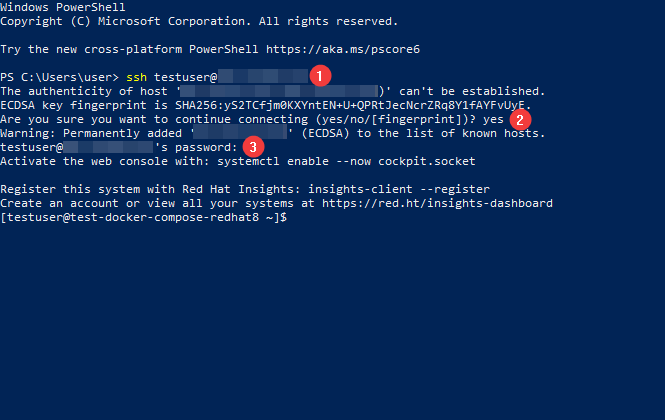
In the Windows operating system (starting with version 1809), an OpenSSH client is available, with which you can connect to Linux servers via SSH. To do this, launch a normal Windows command prompt and enter the command “ssh user@*vm_ip*” (1), where “user” is the username that was specified while creating the virtual machine and “*vm_ip*” is the VM IP address.
Then type “Yes” (2) and enter a password (3) that was specified while creating the virtual machine.
- With the PuTTY application
To do this, you need to connect via SSH to the PuTTY application. You can download it at the following link – Download.
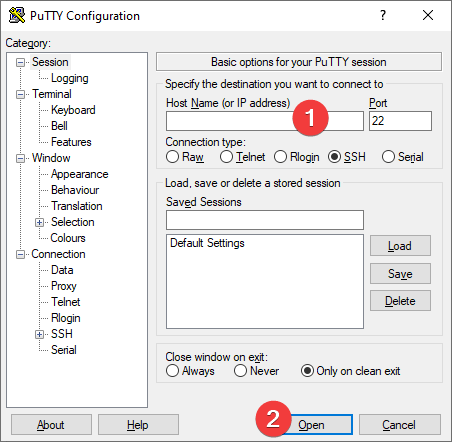
Run PuTTY, enter the VM address in the “Host” field (1), and click “Open” (2) to connect.
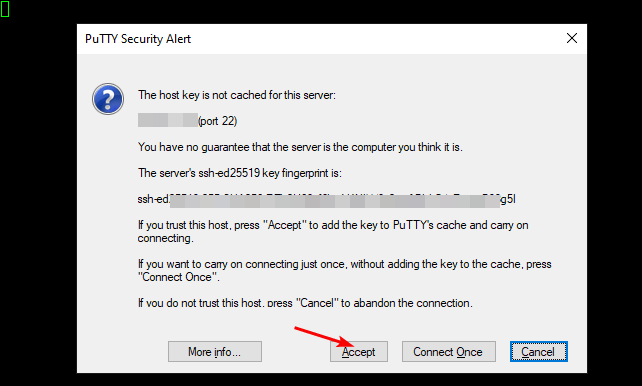
In the window that appears, click Accept.
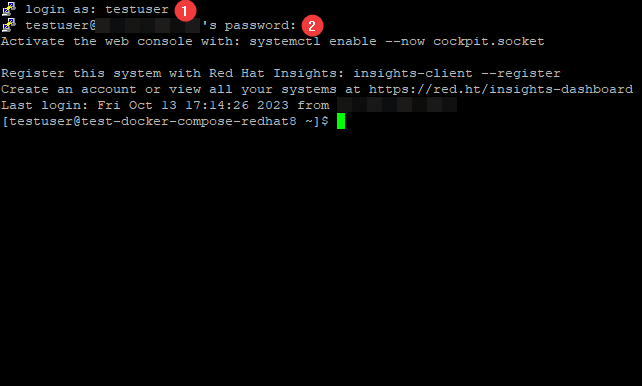
In the opened console, you will need to enter a username (1) and a password (2) that were specified while the VM was being created (you’ll not see the password in the console while entering it).
- The next mandatory step is to activate the virtual environment. Go to /home/pytorch_venv/mnist and activate the virtual environment:
$source /home/pytorch_venv/bin/activate

- You can view the parameters of your virtual machine using the commands:
- $python3 -c “import torch; print(torch.__version__); print(torch.cuda.is_available())” – see PyTorch version and status

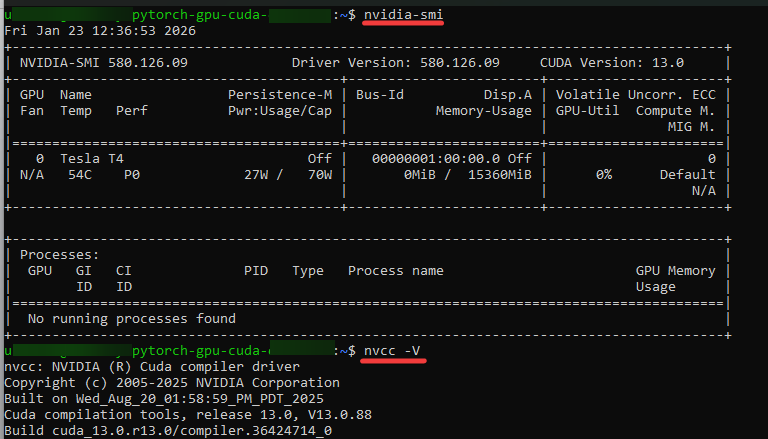
- $nvidia-smi – see NVIDIA GPU driver
- $nvcc -V – see toolkit CUDA
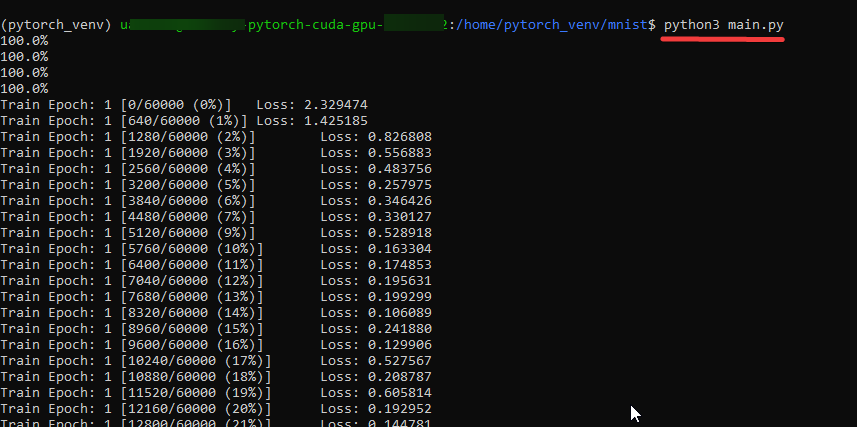
- You can run the test project $python3 main.py
- To work with the JupiterLab run script
$start_web.sh

- Get token
$sudo cat /root/token.txt

Important note: each time JupiterLab is launched, a new token is generated if registration on the WEB resource has not been completed.
- Open your browser and enter http://VM_IP:8888. Start page opens
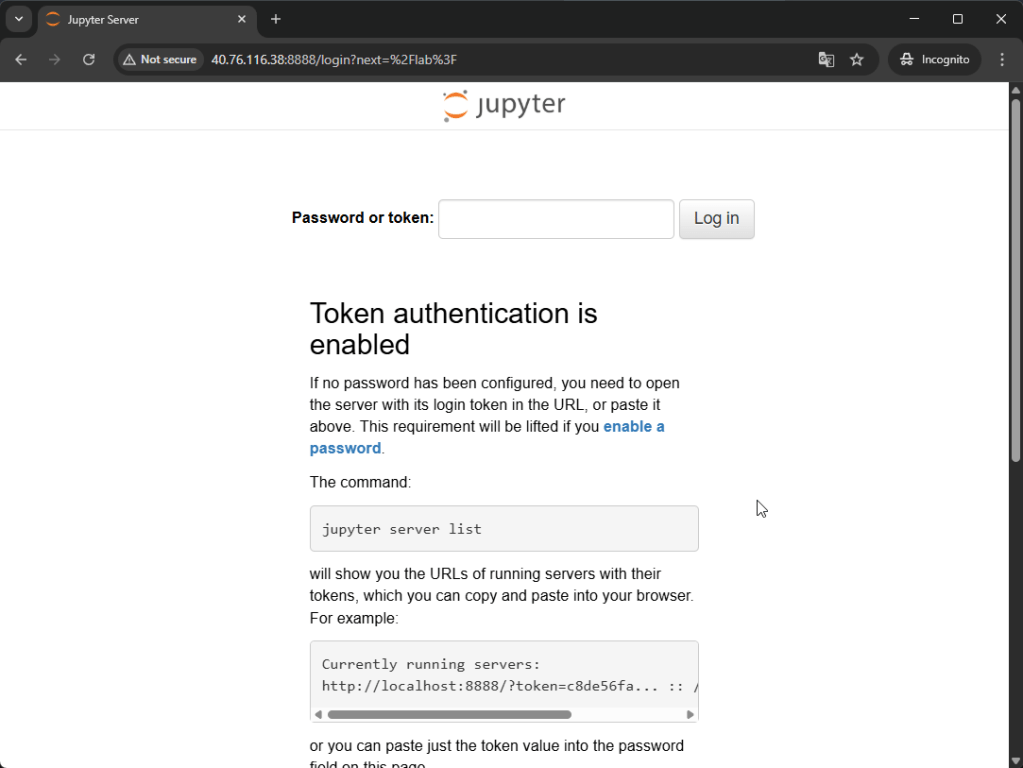
- Register on the web resource using one of the methods.
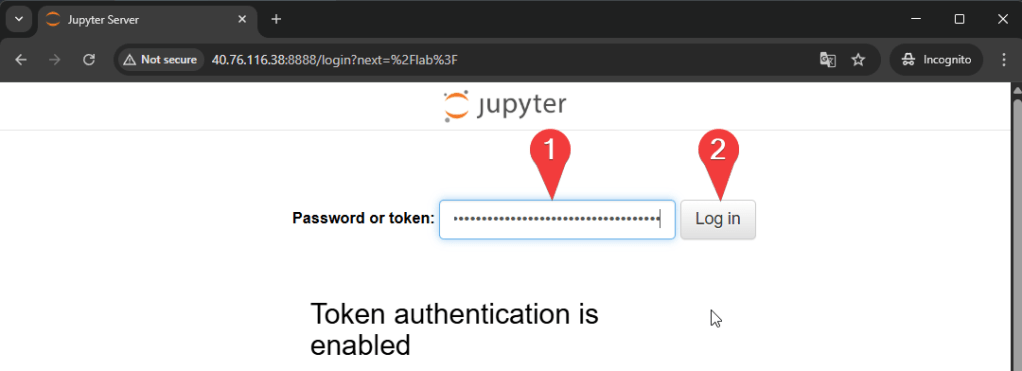
- Enter the token from step 7 and click Log in.
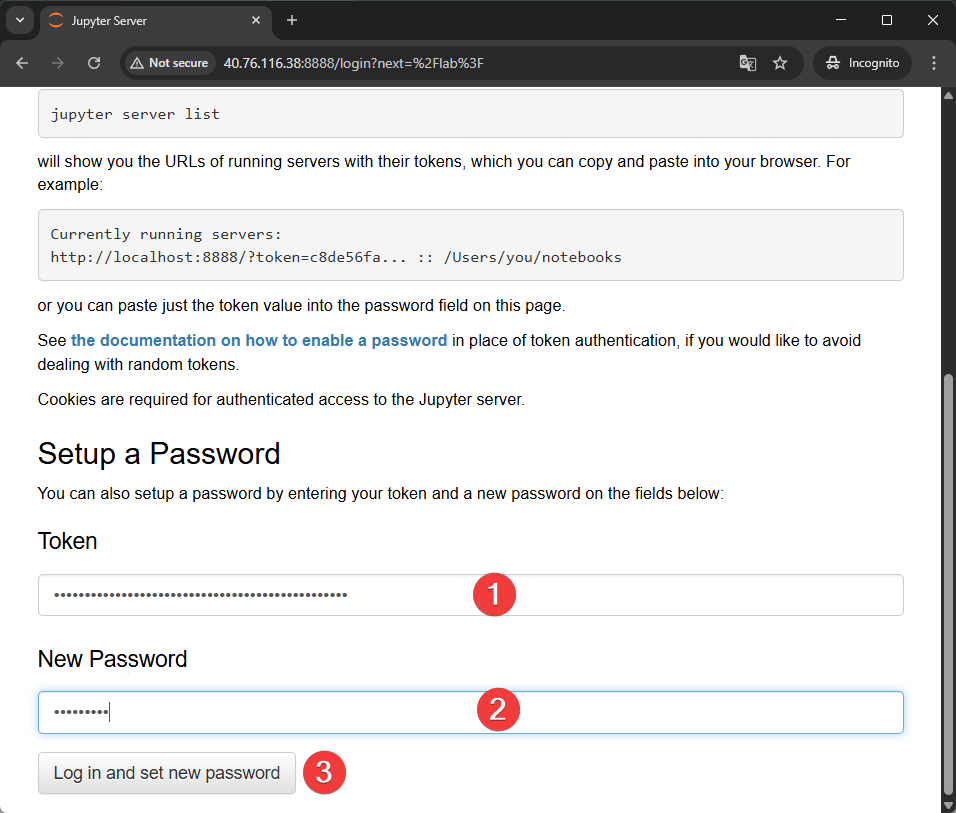
- Or enter token (1) and create your own password (2), and click Log in and set new password (3).
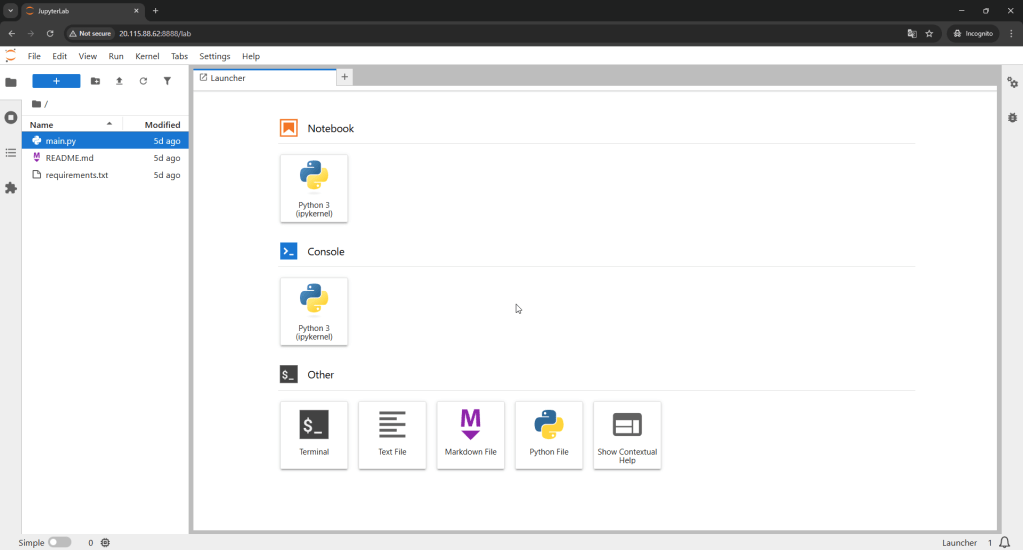
Now you can work using the WEB UI with well-prepared PyTorch and JupyterLab with the GPU NVIDIA driver + CUDA on Ubuntu 24.04.
Get more:

