
Deploy personal server for storage and collaborative work with our Owncloud Server on Debian 13

Effortless installation. Ready-to-run with easy maintenance. Explore now for a smooth experience!
Connecting and configuring Owncloud Server on Debian 13
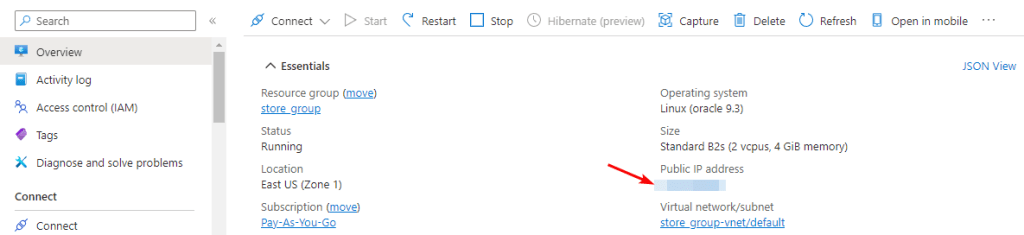
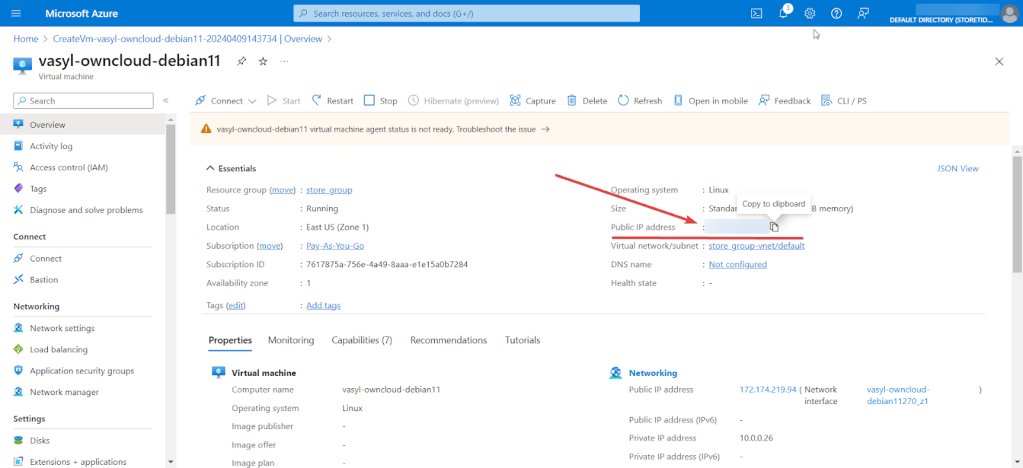
- After purchasing and starting the VM, you should know its IP address. You can find it in the personal account of Azure. (You need to select the virtual machine from the list. By clicking the item “Overview”, your IP is displayed in the “Public IP Address” line).
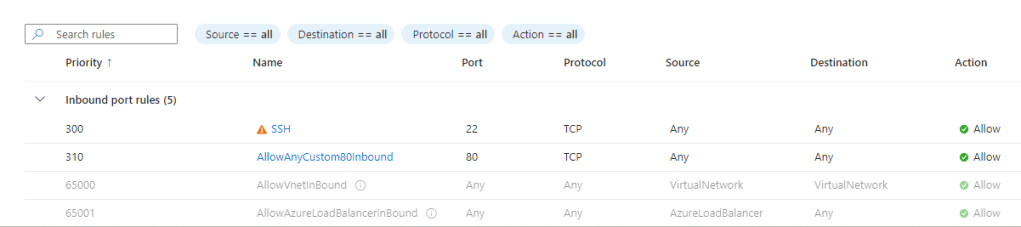
- To work, you must open port 80 (TCP) in the network properties in the azure firewall.
- Now you can go to the admin panel. To access the admin panel, you need to enter the web browser address bar http://yourVM’sIP/
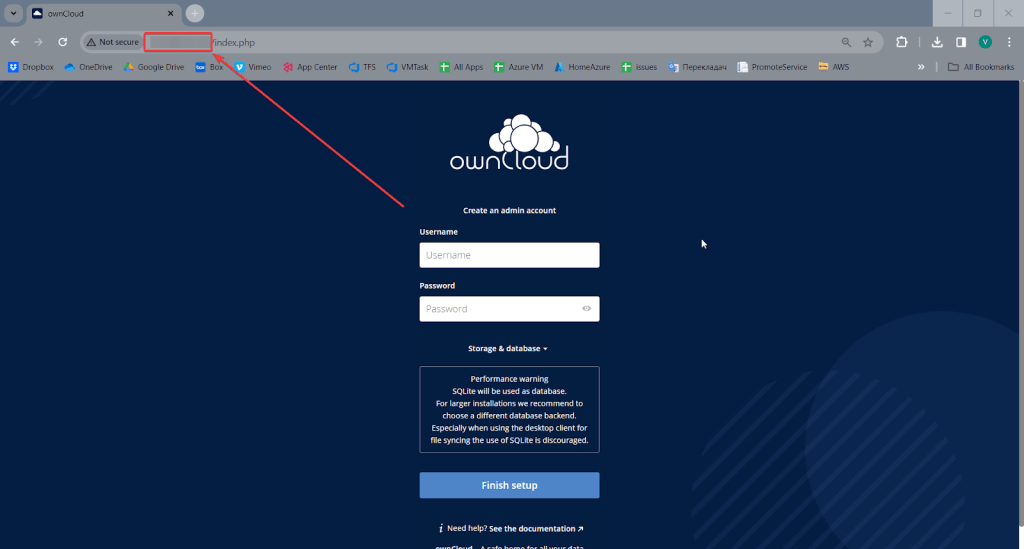
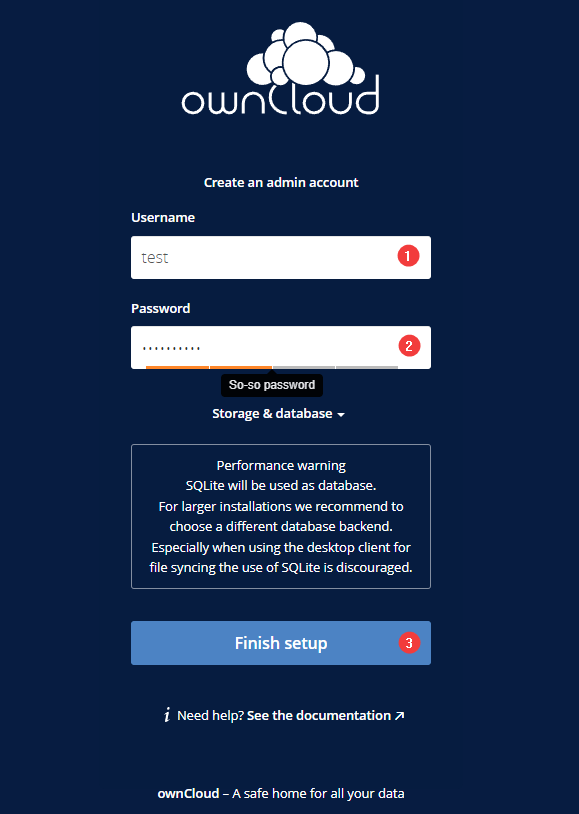
- To set up your cloud storage, you need to enter your username (1) and password (2) in the appropriate fields and click Finish setup (3).
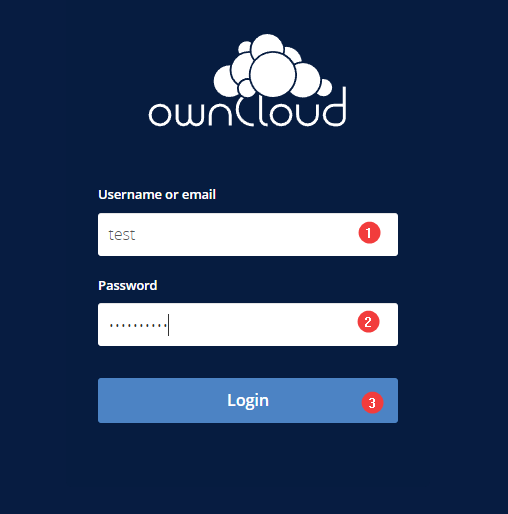
- After setting up the cloud, you need to keep your username (1) and password (2) that you entered in the previous step and click the Login button (3).
- To change your password, follow these steps: click on your Login(1)>Settings (2).
- In the fields, enter the current and new password and click Change Password.
- To upload files to the cloud, click on the plus icon(1) and select upload(2).


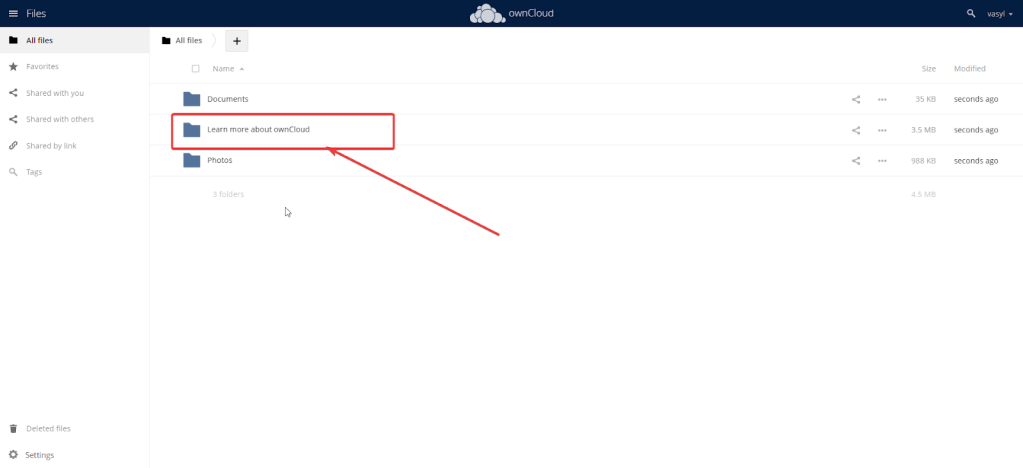
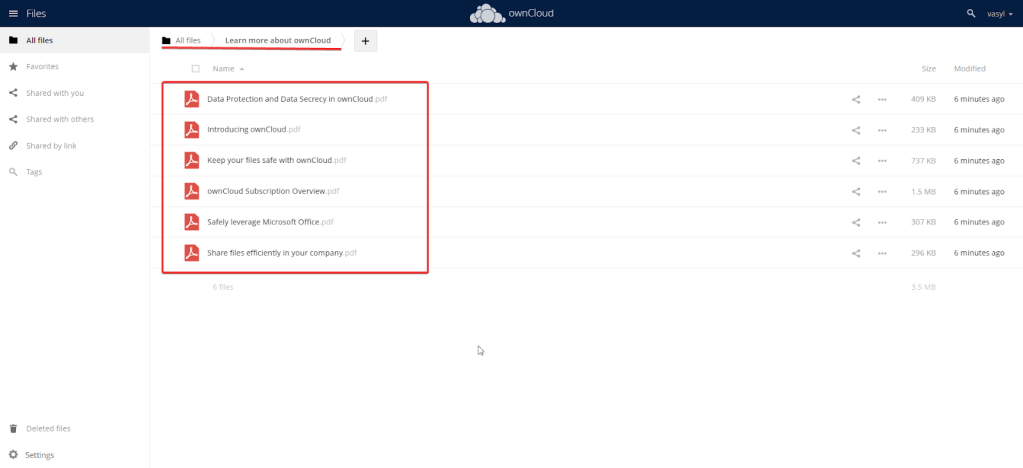
- More information about cloud storage can be found in the folder ‘Learn more about ownCloud’.
Now you are the owner of the cloud storage, we hope you will enjoy working with it.
 Articent Group — Software Apps & Virtual Machine Solutions