

Effortless installation. Ready-to-run with easy maintenance. Explore now for a smooth experience!
Configuring and connecting to Apache HTTP Server CarpaOS 3.22
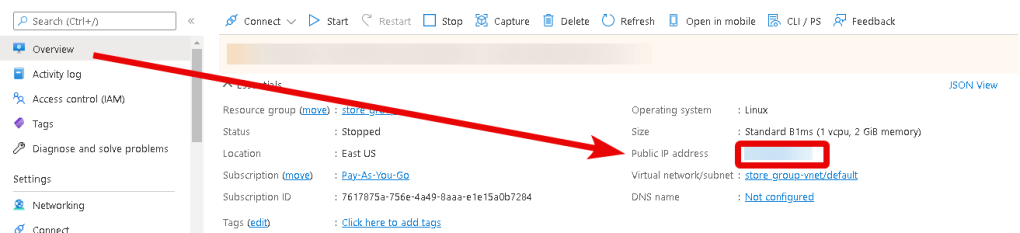
- Run the VM through the Azure Portal. To connect to the Apache Server, first, you need to know the server IP address. You can find it in the personal account of Azure. You need to select the virtual machine from the list. By clicking the item “Overview”, your IP is displayed in the “Public IP Address” line.
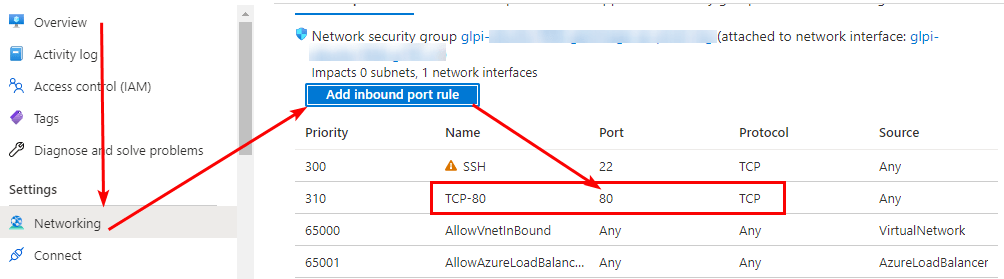
- Next, you should open port 80 TCP in the network properties in the Azure firewall.
- To manage the Apache HTTP server, you should connect to a VM.
- With OpenSSH
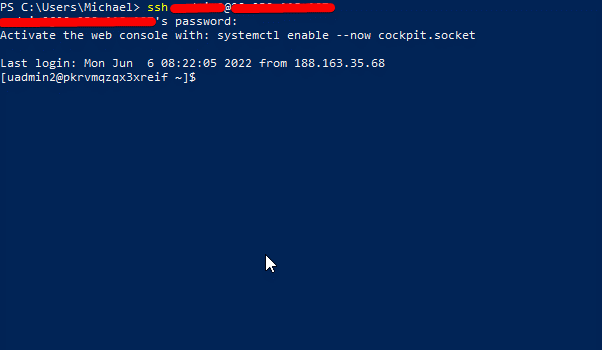
In the Windows 10 operating system (starting with version 1809 ), an OpenSSH client is available, with which you can connect to Linux servers via SSH. If Windows 10 is suitable and the OpenSSH client is installed, you can start connecting via SSH. To do this, launch a normal Windows command prompt and enter the command ” ssh user@*vm_ip*”.
Where “user” is the username that was specified while creating the virtual machine and “*vm_ip*” is the VM IP address.
In the opened console, it is necessary to enter the password that was specified while creating the virtual machine.
- With the PuTTY application
To do this, you need the PuTTY application to connect via SSH. You can download it at the following link – Download
Run Putty, enter the VM address in the “Host” field, and click “Open” to connect.
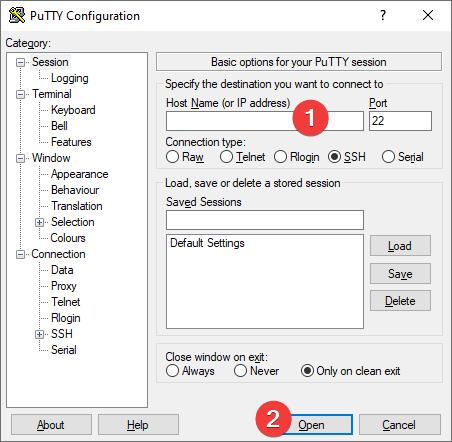
In the opened console, you will need to enter a username and password that were specified while the VM was being created (you’ll not see the password in the console while entering it).
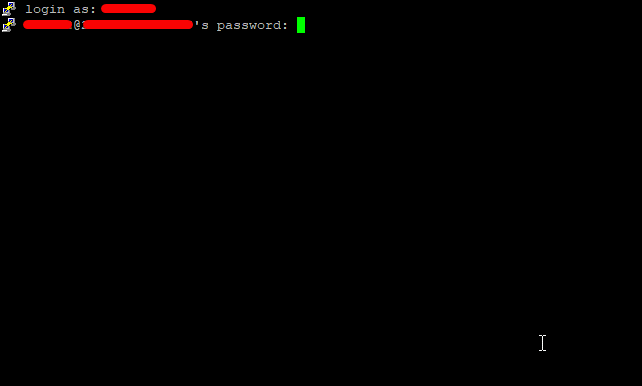
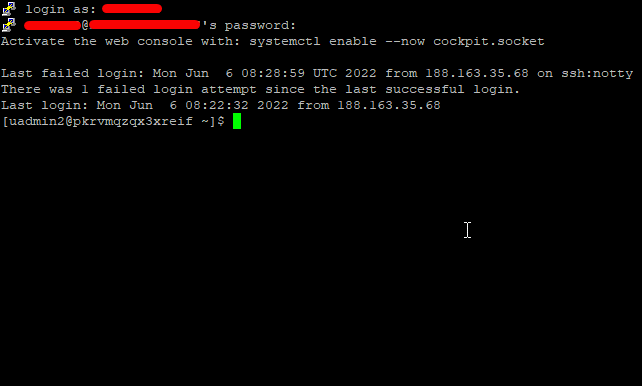
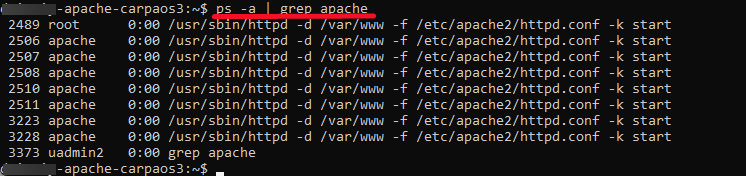
- To check that Apache is up and running and get the list of all running Apache processes, enter the command
> ps -a | grep apache
- Use the next commands to manage the service
>sudo rc-service apache2 start
>sudo rc-service apache2 status
>sudo rc-service apache2 restart
>sudo rc-service apache2 stop
- To check loaded modules, enter >httpd -M
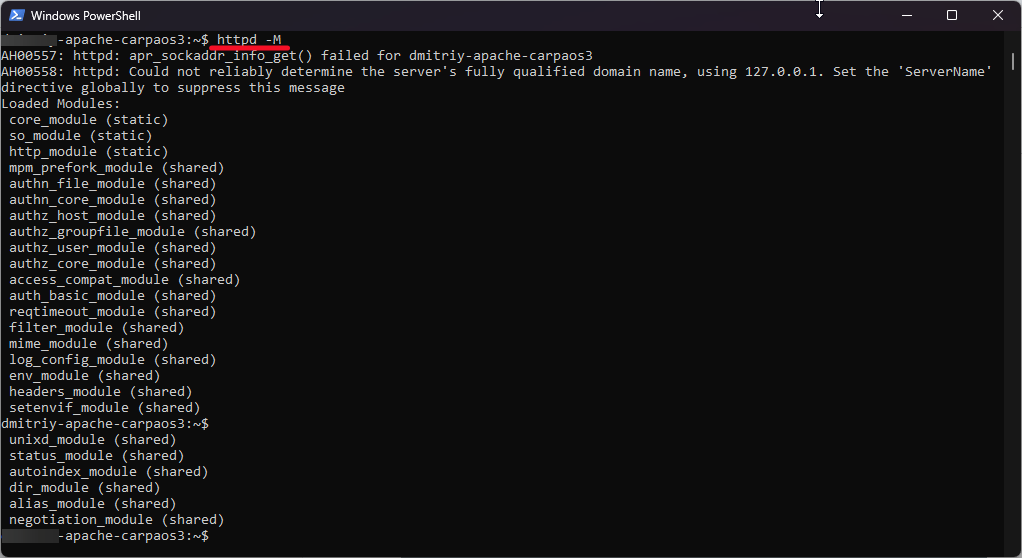
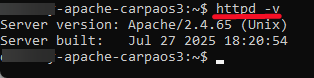
- To check server version, enter >httpd -v
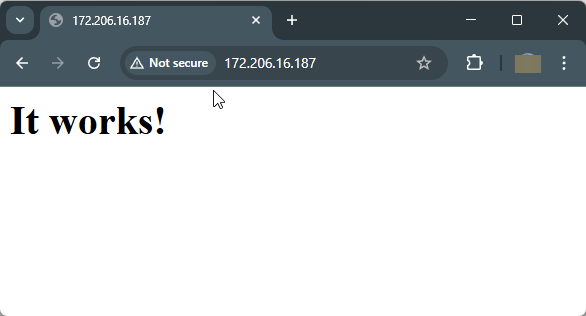
- Entering http://*VM_IP* in a browser window opens a test server page.
More documentation about the Apache HTTP server here – About the Apache HTTP Server Project
Get answers to your question – FAQ – HTTPD – Apache Software Foundation
 Articent Group — Software Apps & Virtual Machine Solutions