

AI Services with Qwen & vLLM on Ubuntu 24.04 LTS provides a ready-to-use environment for running and serving AI models. The virtual machine includes Qwen, vLLM, and the required NVIDIA graphics drivers and CUDA development tools. It is designed to help developers and AI teams deploy large language models, run inference workloads, and integrate AI capabilities into applications on Microsoft Azure.

Effortless installation. Ready-to-run with easy maintenance. Explore now for a smooth experience!
Connection to VM with AI Services with Qwen & vLLM on Ubuntu 24.04 LTS
- After purchasing and starting the VM, you should know its IP address. You can find it in your Azure personal account. You need to select the virtual machine from the list. By clicking the “Overview” item, your IP address is displayed in the “Public IP Address” line.
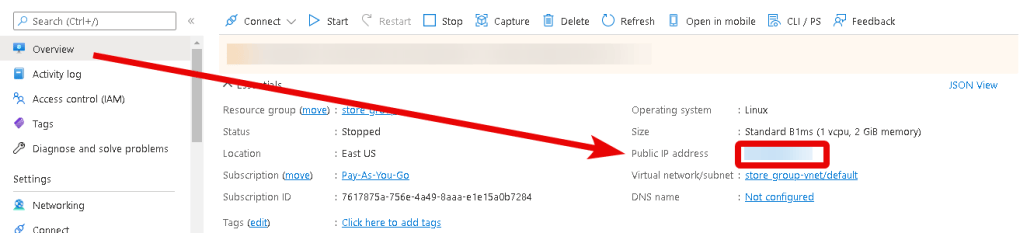
- To manage the server, you should connect to a VM.
- With OpenSSH
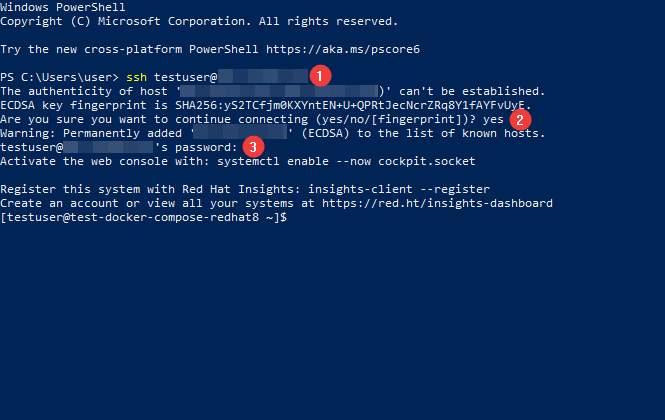
In the Windows operating system (starting with version 1809), an OpenSSH client is available, which allows you to connect to Linux servers via SSH. To do this, launch a normal Windows command prompt and enter the command “ssh user@*vm_ip*” (1), where “user” is the username that was specified while creating the virtual machine and “*vm_ip*” is the VM IP address.
Then type “Yes” (2) and enter a password (3) that was specified while creating the virtual machine.
- With the PuTTY application
To do this, you need to connect to the server via SSH using the PuTTY application. You can download it at the following link – Download.
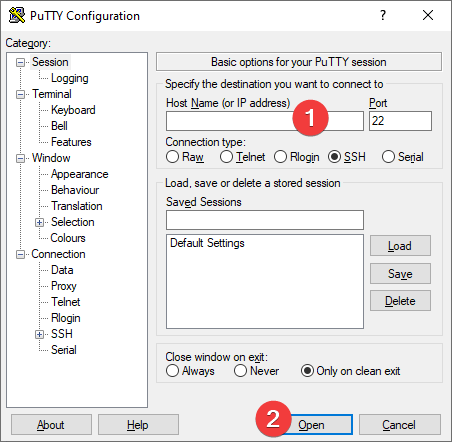
Run PuTTY, enter the VM address in the “Host” field (1), and click “Open” (2) to connect.
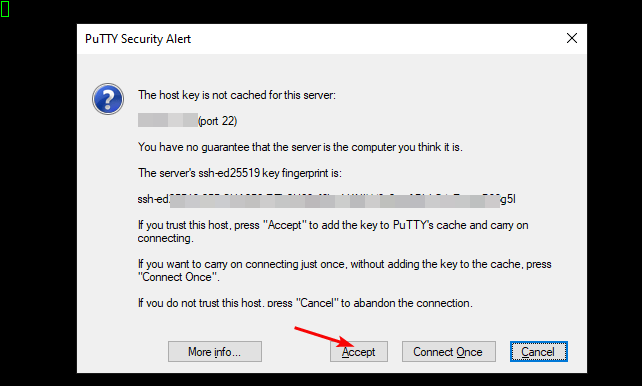
In the window that appears, click Accept.
In the opened console, you will need to enter a username (1) and a password (2) that were specified while the VM was being created (you’ll not see the password in the console while entering it).
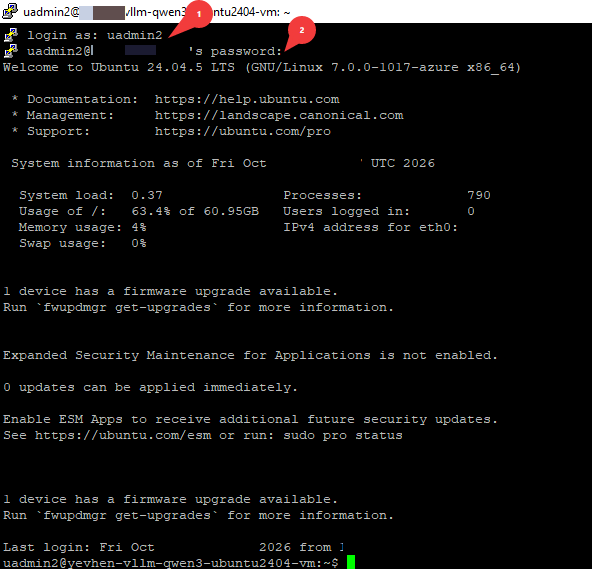
- After connecting to the VM, wait for the automatic setup and model download to complete. This process may take a considerable amount of time. Monitor the service startup by running:
sudo journalctl -u vllm-qwen3.service -f
Wait until the following message appears: Application startup complete.
Press Ctrl+C to exit the log viewer. The service will continue running.

- Verify that the vLLM server is listening on port 8000 by running:
sudo ss -tulnp | grep 8000
The output should show LISTEN, the address 0.0.0.0:8000, and the vllm process.

- Retrieve the API key from the configuration file and store it in a variable:
API_KEY=$(sudo grep VLLM_API_KEY /etc/vllm/qwen3.env | cut -d ‘=’ -f 2)
Run the command as written. It does not display any output. Use the same SSH session for the following request. - Send a test request to verify that the model responds:
curl -sS -i –max-time 180 \

http://127.0.0.1:8000/v1/chat/completions \
-H “Content-Type: application/json” \
-H “Authorization: Bearer $API_KEY” \
-d ‘{
“model”: “RedHatAI/Qwen3.8-27B-INT4”,
“messages”: [
{“role”: “user”, “content”: “Say hello in English”}
],
“max_tokens”: 50,
“temperature”: 0
}’
A successful response returns HTTP 200 OK and a greeting such as “Hello!” in the content field.

- Check the NVIDIA GPUs and driver by running:
nvidia-smi - Check the installed CUDA compiler version:
nvcc –version - Before editing the startup parameters, stop the service:
sudo systemctl stop vllm-qwen3.service
Open the configuration file:
sudo nano /etc/vllm/qwen3.env
Modify the required parameters, then press Ctrl+O and Enter to save the file. Press Ctrl+X to exit the editor. - After saving the configuration, run the following commands to reload the systemd configuration and start the service:
sudo systemctl daemon-reload


sudo systemctl start vllm-qwen3.service

Monitor the startup log like in step 3:
sudo journalctl -u vllm-qwen3.service -f
Wait until the following message appears: Application startup complete:
Useful information
For additional configuration options and API details, refer to the official vLLM resources:
This image includes custom vLLM patches. Compatibility with future vLLM updates has not been validated.
Your virtual machine is now ready to process requests through the vLLM API

