
- Start your VM
To start the server, run the VM via the Azure Portal.
- To connect to the server, you need to know the virtual machine’s IP address. You can find it in your Azure account by selecting the VM from the list. In the “Overview” section, the IP address is displayed in the “Public IP Address” field.
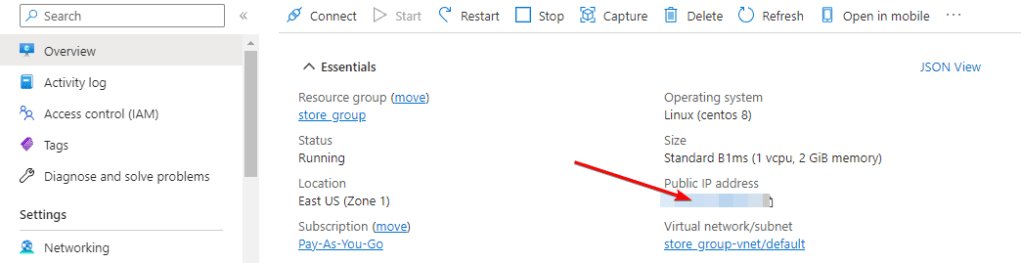
- Ports 27015 (TCP) and 27015 (UDP) must be open in the Azure Firewall network rules. You can verify this in your virtual machine’s network settings.
- Get a Token
- To display the server in the in-game server browser, you should add a GSLT token to the configuration file. To create a token, go to the following page in your Steam account: Steam Game Server Account Management.
- Enter 730 in the App ID field and enter a descriptive name in the Memo field. Then click “Create”.

- Copy the received token.
- Configure the Server
Connect to your VM:
- Using OpenSSH
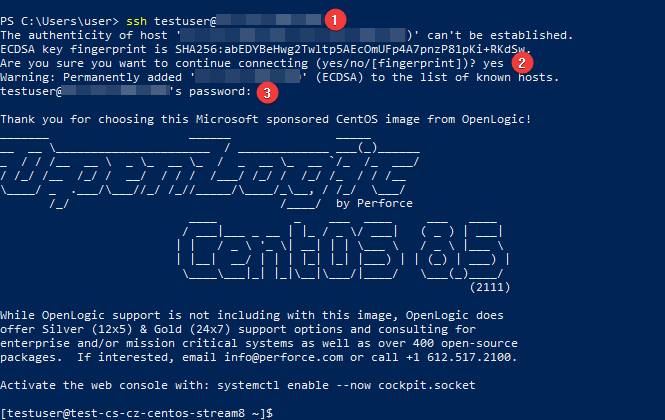
On Windows 10 operating system (version 1809 and later), an OpenSSH client is available that allows you to connect to Linux servers via SSH.If you are using a supported version of Windows 10 and the OpenSSH client is installed, you can connect via SSH.
To do this, open a standard Windows Command Prompt and enter the following command: “ssh user@*vm_ip*” (1), where “user” is the username specified when creating the virtual machine, and “*vm_ip*” is the VM’s IP address.
Then type “Yes” (2) to confirm the connection and then enter the password (3) specified during virtual machine creation.
- Using PuTTY
To connect via SSH, you need the PuTTY application. You can download it from the following link – Download
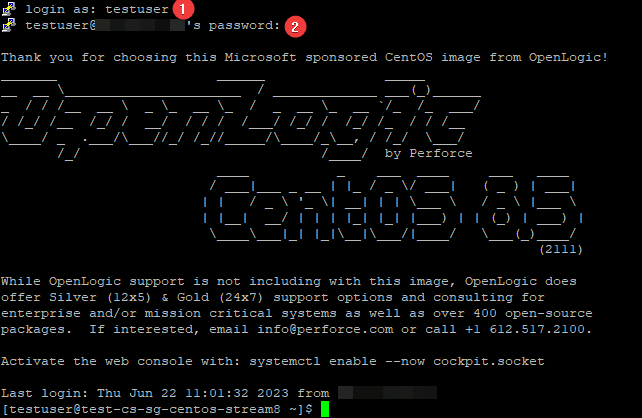
Run PuTTY, enter the VM’s address in the “Host Name” field (1), and click “Open” (2) to connect.

In the opened console,enter the username (1) and a password (2)specified during virtual machine creation. Note that the password will not be visible while typing.
Enter the following commands:
> sudo su (1)
> su gameserver (2)
> cd /home/gameserver (3)
> ./cs2server stop (4)

Open the configuration file:
> vi /home/gameserver/lgsm/config-lgsm/cs2server/cs2server.cfg
Press Insert on the keyboard to enter edit mode. Add the parameter gslt=”Token” at the end of the file, replacing TOKEN with the generated token from Section 2. Use the arrow keys on the keyboard to move to the desired line. To paste the copied text, use the right mouse button.
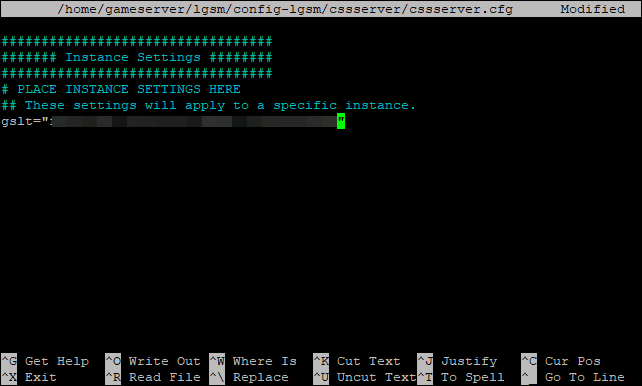
Press Esc, then type > :wq and press Enter to save the changes and exit the file.
Start the server using the following command:
> ./cs2server start
To manage the server, use the commands described in the Basic Usage section on the Deploy Counter-Strike 2 Game Servers.
- Connect to your server
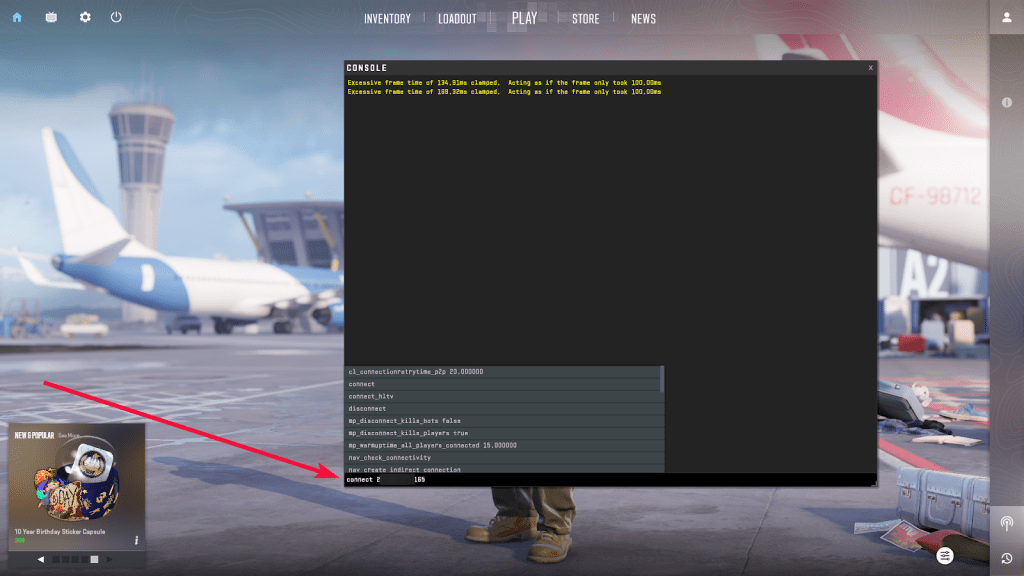
To connect to the server, launch “Counter-Strike 2” game on your PC, open the console by pressing the “`”, type connect <VM_IP> and press Enter.
Let’s go! Hold your positions!
 Articent Group — Software Apps & Virtual Machine Solutions